Quickstart: Run a Batch
This quickstart drives the simulated reference plant used throughout
these docs: Site plant-01, a bulk drug substance plant that runs
entirely in software. Its upstream process cell, fermentation-cell,
holds the three units you will work with:
- fermenter-1 — a 20,000 L stirred-tank bioreactor
- seed-tank-1 — a 1,000 L inoculum growth vessel
- media-prep-1 — a 5,000 L media batching and sterilisation tank
Downstream, a second cell (recovery-cell) holds a centrifuge and a
chromatography skid. There is no physical hardware anywhere in it, so you
can drive real recipes against realistic process dynamics from the
browser.
You'll need access to a running Cloud-Native DCS instance with this reference plant deployed. If you're standing one up yourself, see Deploy Your Own, which installs the chart and applies exactly this hierarchy. Otherwise your platform team provides the URL and login. Everything below is already deployed. You just drive it.
The five steps below are the rest of that arc. Here they are on the same plant, and every click in the clip is an instruction from this page.
This walkthrough touches the Web UI's role-aligned endpoints
(/system, /hmi, /data). Each step calls out which endpoint you're
in.
1. Find a recipe in the System endpoint
Recipes are engineering artifacts. You author and release them in
/system, then execute them in /hmi.
Open /system and in the sidebar expand Recipe Library →
Master Recipes. The Site dropdown at the top of the recipes
page points at the site that contains the reference plant. RBAC
confines each login to the sites it has been granted.
What's in the reference plant?
The reference plant lives on Site plant-01 under Enterprise
bioworks, with areas upstream and downstream. Pick that site in
the Site dropdown if it isn't already selected.
The reference plant ships three master recipes: bds-v2 and bds-v3, two
versions of the production fermentation recipe, and fermenter-cip-v1, the
clean-in-place turnaround that runs between lots. Every recipe starts in
Draft. Promote one to Effective before it can run.
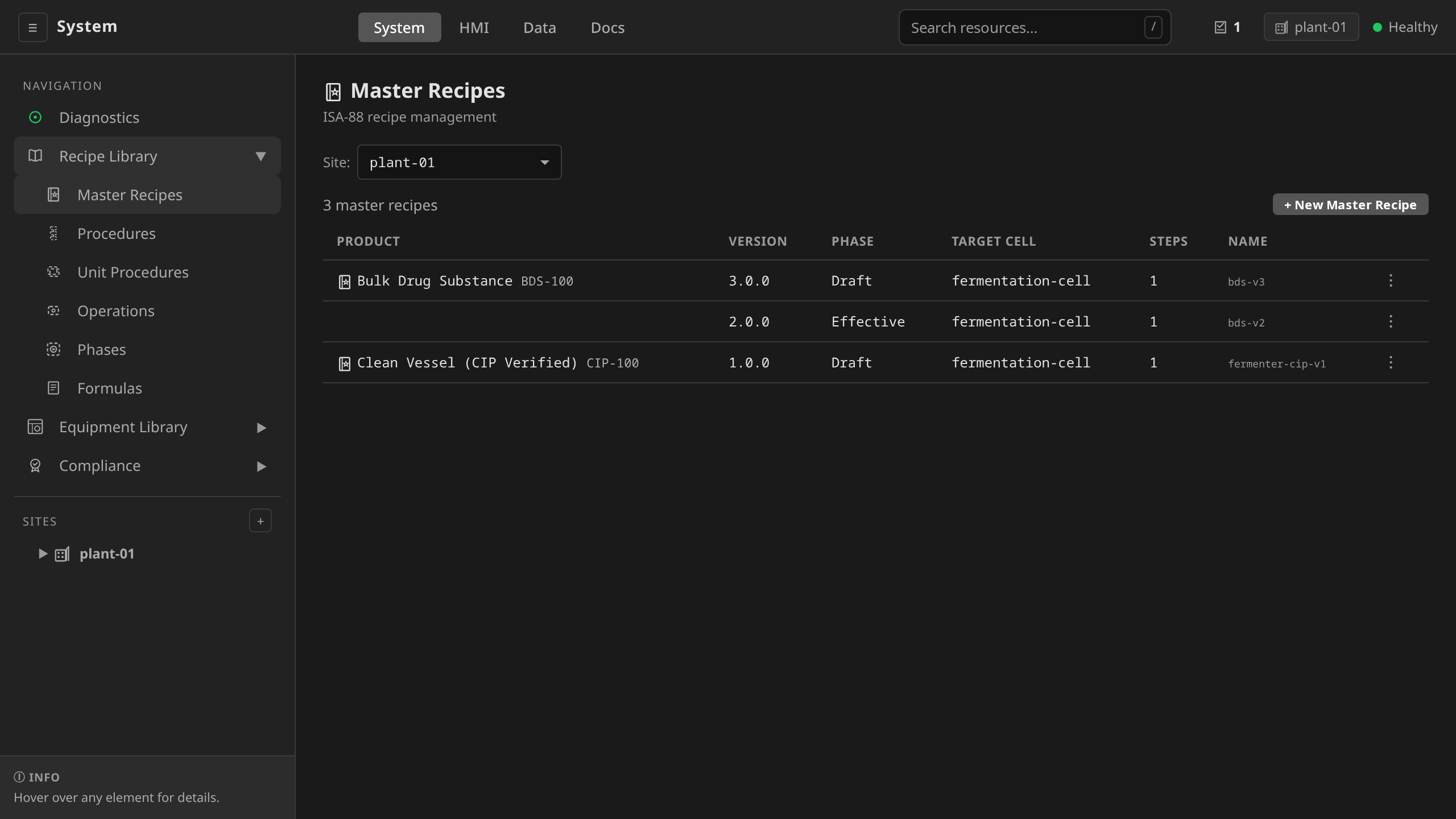
For the fastest path, pick fermenter-cip-v1. It is a single-unit cycle
on the fermenter (fill with rinse water, recirculate, drain), and it
runs to completion in about two minutes, where a production
fermentation runs for days. Open it and walk it through the approval
workflow (Approve → Release → Make Effective) to land
it in Effective. Each of the three asks you for a reason before it
commits, because each one is an electronic signature: the reason, the
signer and a digest of the recipe go into the audit trail together. All
three need the dcs-supervisor or dcs-admin role. See
Recipes for the full lifecycle, the per-action role table
and the CLI/YAML equivalents.
2. Open the process cell in the HMI
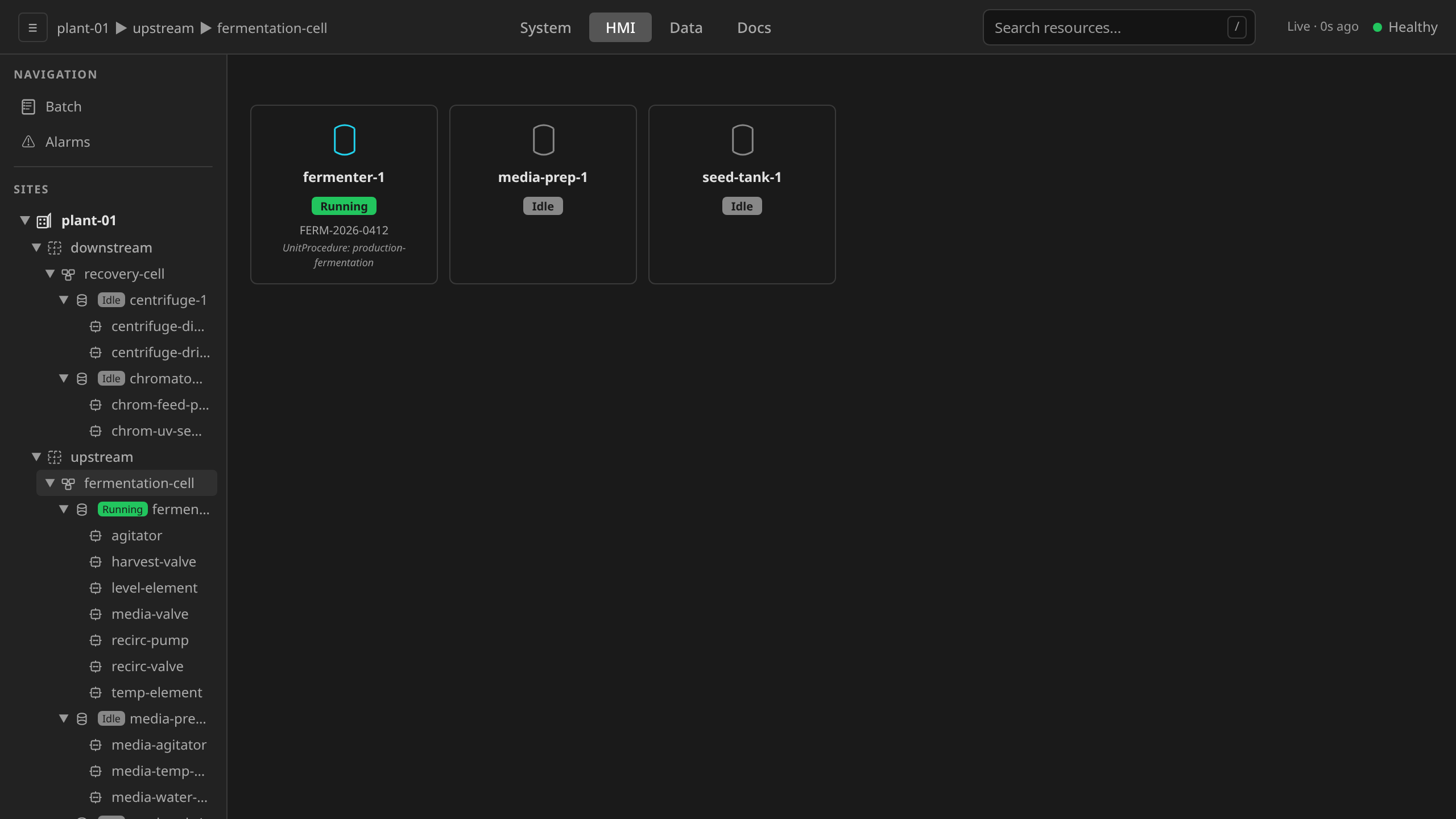
Switch to /hmi (the operations endpoint). The sidebar carries the site
hierarchy, already expanded down to the control modules when only one
site is configured. Click the fermentation-cell process cell under
plant-01 → upstream, expanding the site node first if it isn't
open. The HMI process-cell view shows one card per unit with its current
ISA-88 state and, if a batch has allocated the unit, the active
unit procedure.
3. Create and start a batch
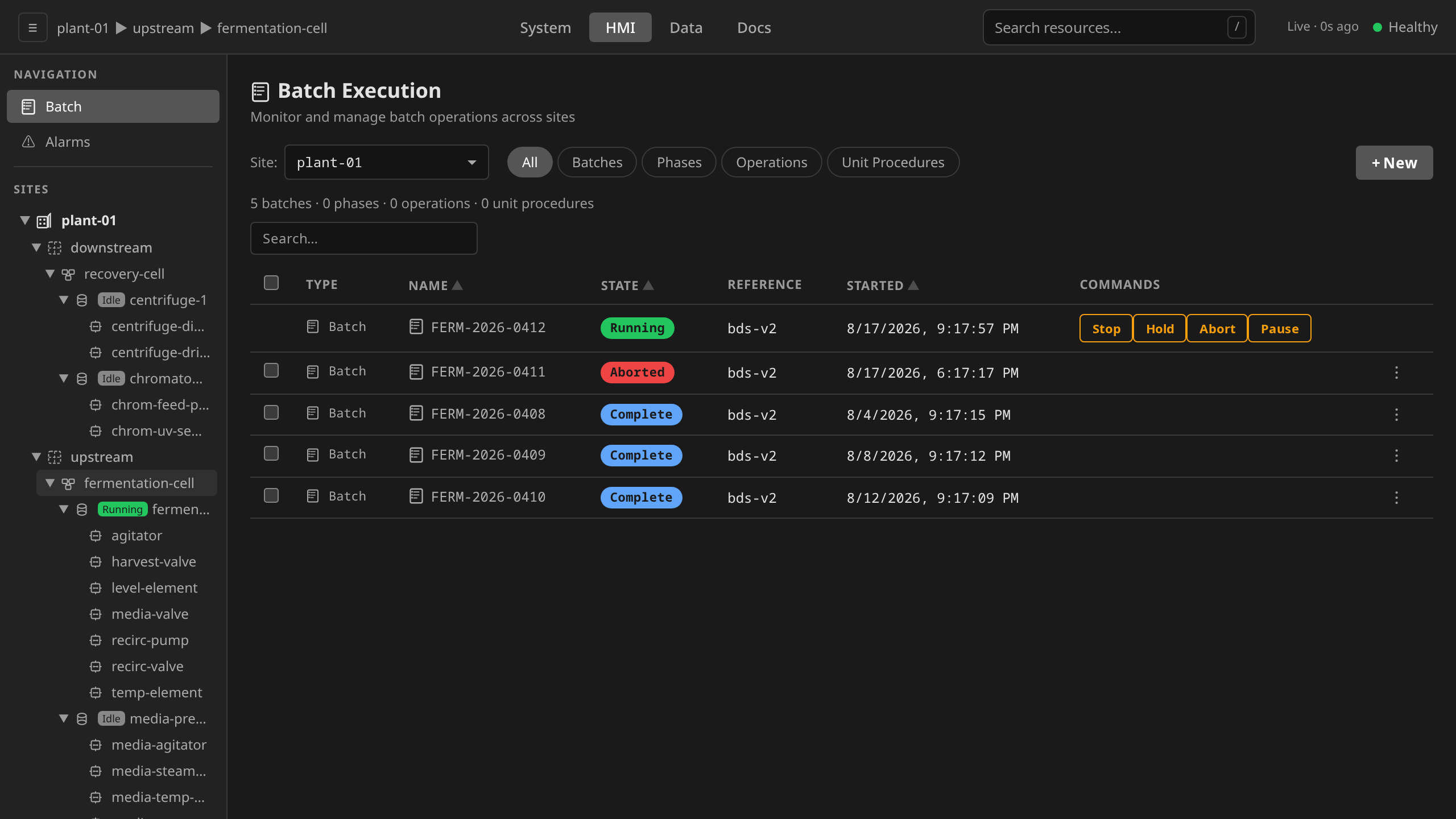
Click Batch in the HMI sidebar to open the Batch Execution view. Click + New, pick the master recipe from step 1, give the batch a unique ID, and submit. The new batch lands in the list in Pending, with Start and Abort as the only commands offered on it.
Click Start on the batch row to kick it off. The batch-operator allocates units and builds the ISA-88 procedural tree (Procedure → Unit Procedure → Operation → Phase), the state goes to Running, and the commands column updates with the ISA-88 commands you can send next (Stop, Hold, Abort, Pause).
Prefer the CLI? Authenticate first, and tell the CLI which site holds
the reference plant, via the --site flag, the DCS_SITE environment
variable, or a config-file default:
dcs login
export DCS_SITE=plant-01   # or pass --site on each command
dcs create batch --recipe fermenter-cip-v1 --batch-id MY-BATCH-001
dcs command Batch MY-BATCH-001 Start
Batch ID and resource name are not the same handle
--batch-id sets the identifier you see in the Batch ID column and on
the production record. The Batch resource itself gets a generated name
(batch-6jrkm), which dcs create batch prints and dcs get batches
carries in its NAME column. dcs command takes either handle.
4. Watch a unit run
Back in the HMI, click into fermenter-1. The
unit dashboard renders a card for every control module grouped by
declared device class (valves, actuators, sensors, controllers, and
anything unclassified under other), along with the
unit's mode, state, and the active unit procedure when a batch is
running on it.
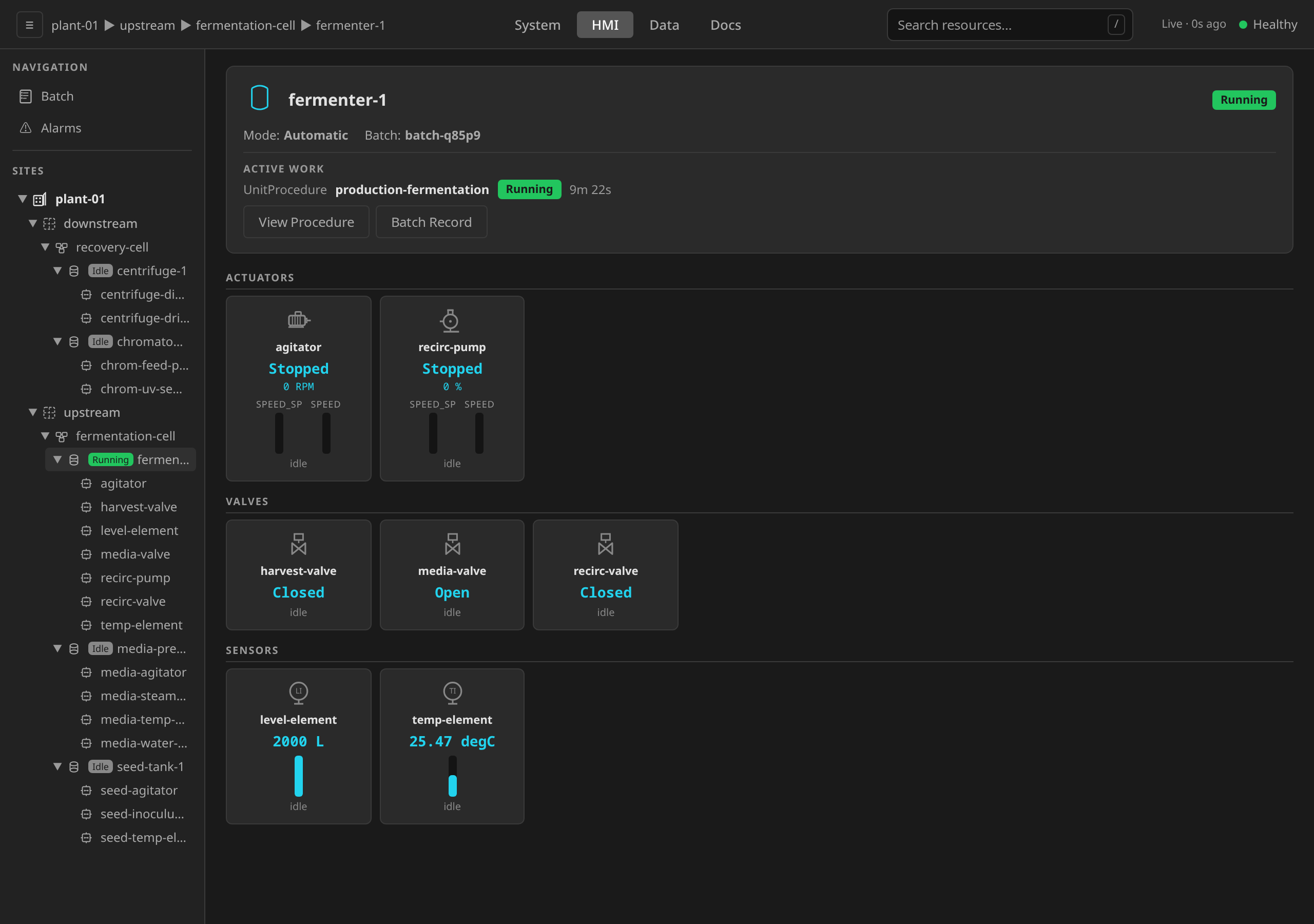
Click any card to open its faceplate for its properties, its live tag values, and, for operator-only control moves, its ISA-88 mode switch and manual overrides.
5. Review what happened in the Data endpoint
After the batch completes, switch to /data (the production
information endpoint). The sidebar views include:
- Trends — historical process values for any tag
- Audit Trail — every operator action and system event
- Batch Records — the consolidated production record for each completed batch (21 CFR Part 11 review sign-off lives here)
- Alarm History — past alarm transitions
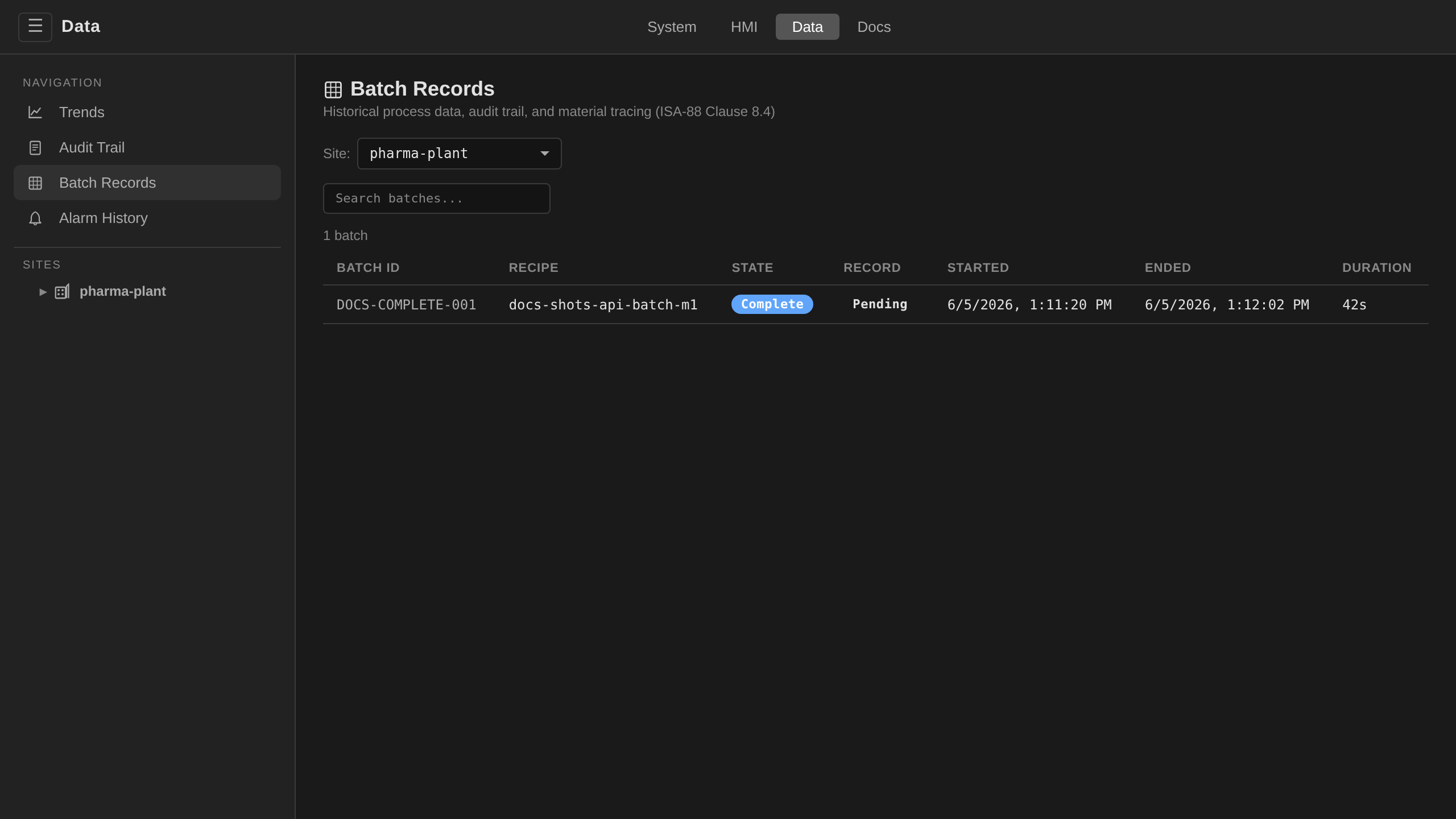
Click any completed batch to see its full production record: the frozen recipe snapshot with the parameter values that batch actually ran, and a phase-by-phase execution history giving each phase's procedural path, the unit it ran on, its start and end times, and how it terminated.
Related Documentation
That's the whole loop: engineer → operate → review. The rest of the site explains how the pieces work and how to use them for your own process.
- Libraries — the control modules, phases, and recipes that ship with the reference plant
- Recipes — the master recipe lifecycle (Draft → Approved → Released → Effective)
- Batch Execution — ISA-88 state machine and command semantics in depth
- Architecture — how the Kubernetes operators and unit runtime fit together
- Deploy Your Own — run Cloud-Native DCS on your own cluster