Batch Execution¶
This guide walks through running a batch end-to-end: from creating a Batch resource through monitoring its lifecycle to completion.
Using the simulated reference plant? All four prerequisites below are already satisfied — its site, units, recipes, and operators are deployed for you. Skip ahead to Creating a batch — open the HMI Batch Execution view, click + New, and pick any of the pre-loaded master recipes (you'll need to promote one from Draft to Effective first).
Integrators: see the API Reference for the REST equivalents of the actions on this page.
Prerequisites¶
Before starting a batch you need:
- Physical hierarchy deployed: Enterprise, Site, Area, ProcessCell, and at least one Unit
- MasterRecipe created (see Recipes)
- Units in Idle state with capabilities matching the MasterRecipe's
targetUnits - Operators running: physical-operator, procedural-operator, and batch-operator
Batch lifecycle¶
A Batch progresses through these phases:
stateDiagram-v2
    [*] --> Pending
    Pending --> Allocating
    Pending --> Failed: allocation error
    Allocating --> Running
    Running --> Holding: Hold / capability loss / equipment allocation lost / procedure cannot be built
    Holding --> Held
    Held --> Running: Restart
    Running --> Complete
    Running --> Stopped: Stop
    Running --> Failed
    Running --> Aborting: Abort
    Held --> Aborting: Abort
    Aborting --> Aborted
    Complete --> [*]
    Stopped --> [*]
    Failed --> [*]
Aborted --> [*]| Phase | What happens |
|---|---|
| Pending | Validates that the MasterRecipe exists and batch size is within recipe header min/max bounds, then waits for an operator to issue Start. Nothing else starts a batch — spec.scheduledStartTime is the planned start and does not command one (ADR 0052) |
| Allocating | Finds and locks Units matching recipe equipment requirements |
| Running | Creates ControlRecipe, builds procedural tree, starts the Procedure |
| Holding | Hold in progress — the procedure's holding logic is running |
| Held | Frozen pending operator intervention (e.g. capability loss, an allocated Unit that was replaced underneath the batch, or a procedural tree the allocated equipment cannot support); Restart resumes |
| Complete | Procedure finished successfully; units deallocated |
| Stopped | Controlled termination via the Stop command, a normal ISA-88 end with no failure in it; units deallocated |
| Failed | Recipe not found, allocation failed, or the procedure failed |
| Aborting | Abort in progress — the procedure's aborting logic is running |
| Aborted | Procedure was aborted via command |
Creating a batch¶
Create a batch from the HMI Batch Execution view, via the CLI, a direct
REST call, or by applying raw YAML. All four paths write the same Batch
resource.
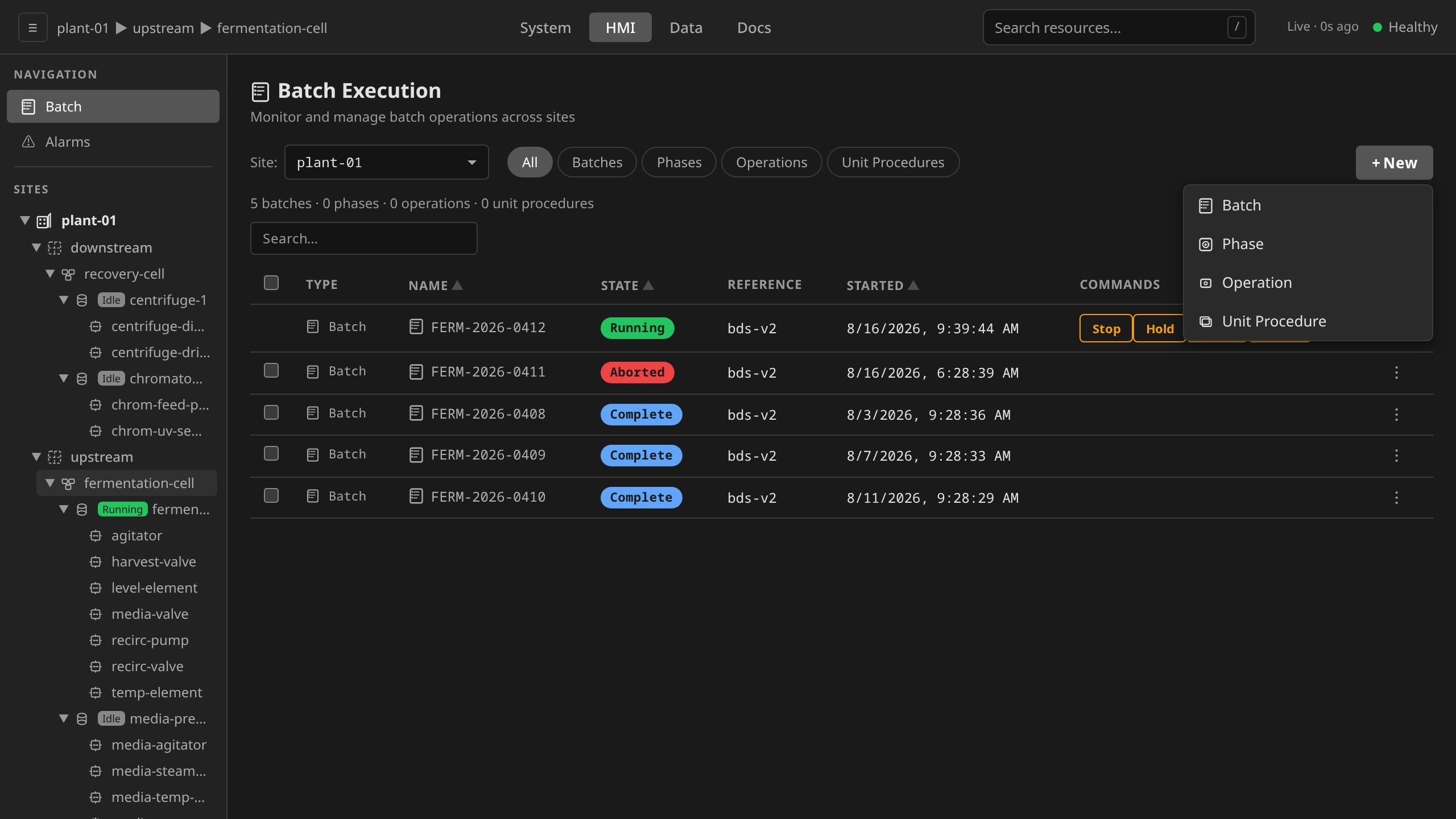
The + New button on the Batch Execution view opens a four-entry menu: Batch (this guide), Phase / Operation / Unit Procedure (covered in Ad-Hoc Execution).
Picking Batch opens the inline create form. The site picker at the
top scopes the master-recipe dropdown to the current site, and selecting
a MasterRecipe in Effective phase triggers a pre-flight check below
the form that surfaces recipe validation errors, runtime-not-ready
units, capability allocation conflicts, and units in Manual equipment
mode before the operator commits to Create.
The equipment-mode row is the one warning that does not block Create,
and the difference is deliberate. Creating a batch against a unit somebody
is currently hand-operating is ordinary, because the unit goes back to
Automatic before the run. Starting one is not, so the refusal lands on
Start instead. See Starting a batch on equipment in Manual
mode.
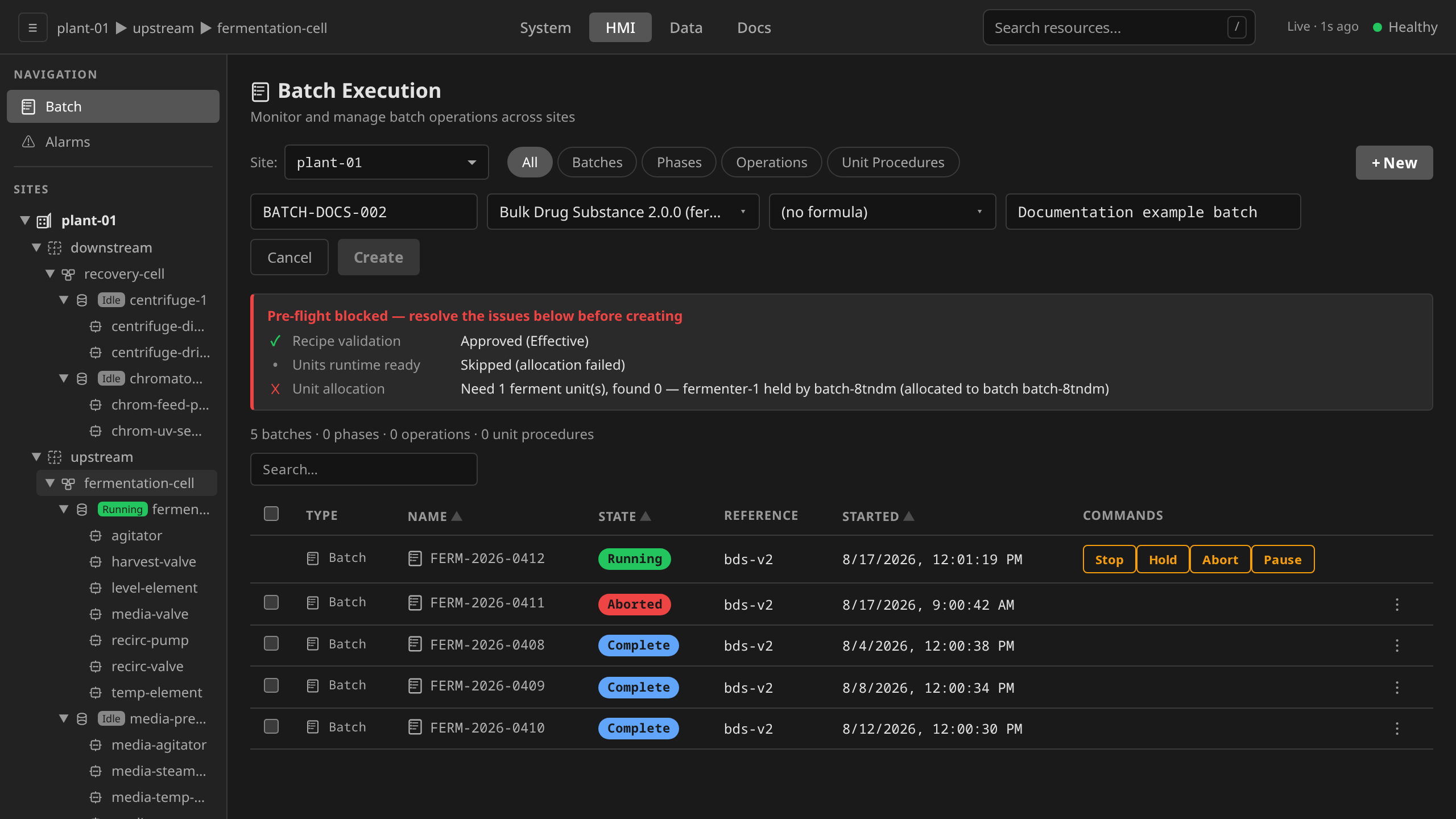
/hmi → Batch Execution → + New → Batch.
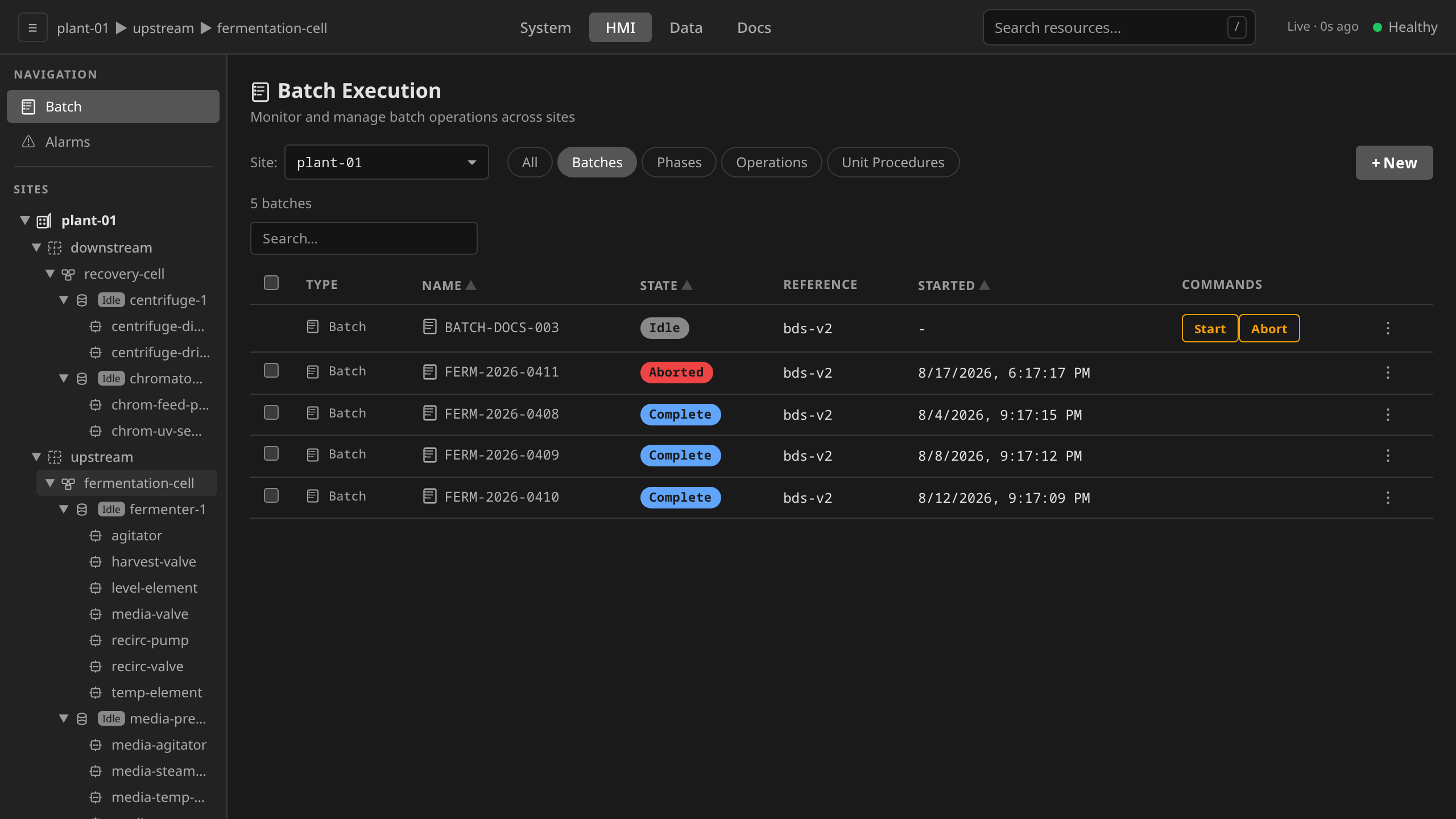
Fill in batch ID, pick a MasterRecipe, optionally pick a formula (the
dropdown only appears if the recipe defines formulas) and add a
description, then Create. The batch ID must be free: it identifies
one batch in the site, and reusing one already in use is refused with a
message naming the batch that holds it
(ADR 0051). Per-batch
parameter overrides are not
exposed in the form (see Parameter overrides and formula
selection for the
API/YAML path). The new batch appears in the list immediately. Its
BatchPhase is Pending until Start is commanded. The STATE column
carries the ISA-88 state, which is a different value. The row
settles on Idle and stays there. Nothing has to hold a unit to
keep it there. Allocation is what Start triggers. A batch waits in
Allocating only when the units its recipe needs are busy.
/hmi → Batch Execution → + New → Batch.
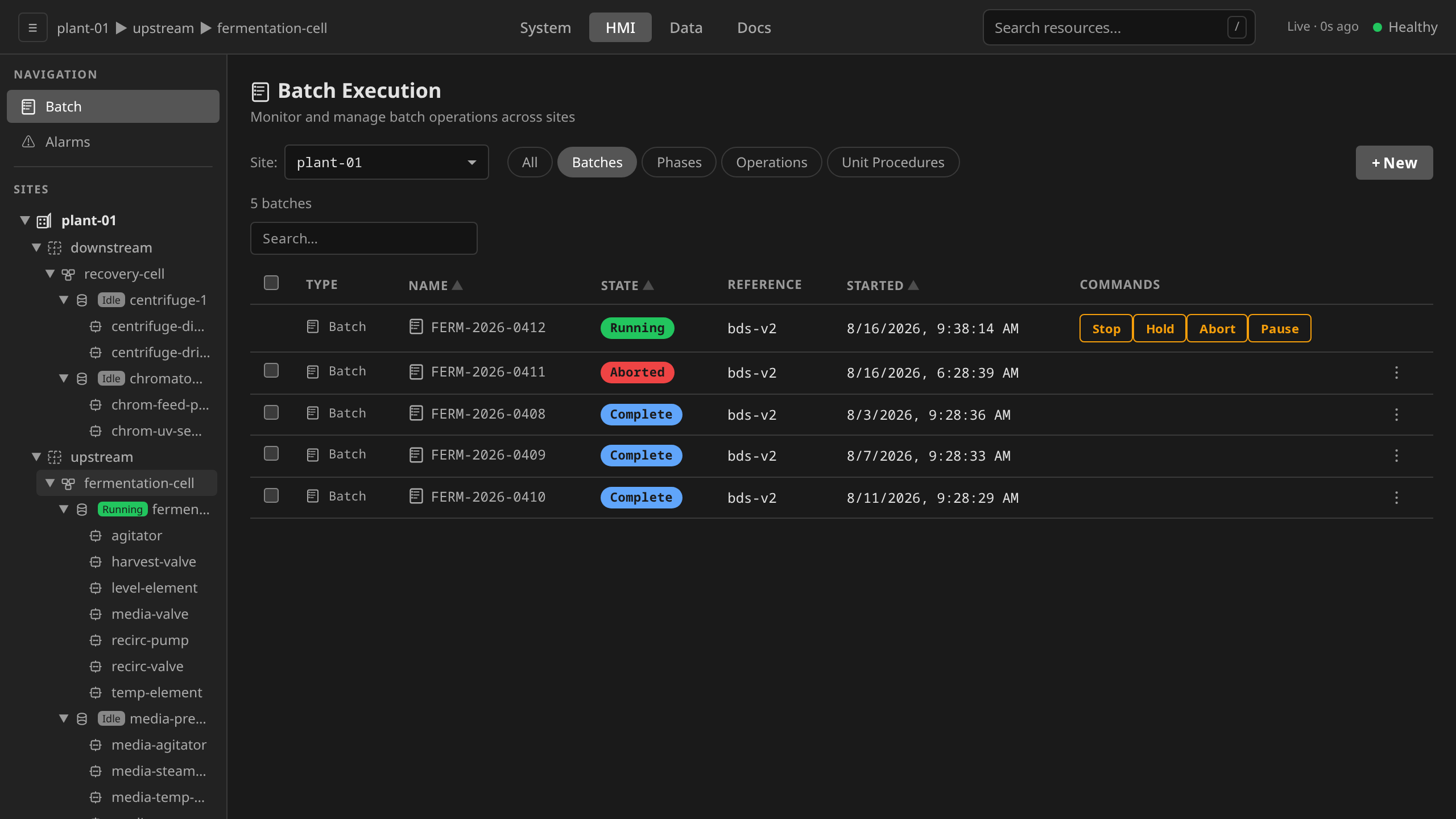
Commanding Start is what triggers allocation. Once the units lock,
the row transitions to Running, and its commands change from Start
and Abort to the running set (Stop, Hold, Pause, Abort).
dcs create batch \
  --batch-id BATCH-2026-001 \
  --recipe chemical-mix-cell1 \
  --formula "100 L Batch" \
  -s houston-plant
--formula is optional. Omit it to let the controller auto-select
the formula whose batchSize is closest to the batch's. The CLI
does not currently accept inline parameter overrides. Use API or
YAML for those.
apiVersion: batch.dcs.io/v1alpha1
kind: Batch
metadata:
  name: batch-001
  namespace: site-houston-plant
spec:
  masterRecipeRef: chemical-mix-cell1
  batchID: BATCH-2026-001
  description: "First production batch of Chemical Compound A"
  batchSize: "500"
  priority: 10

  # Override recipe parameters for this batch
  parameterOverrides:
    - name: targetTemp
      value: "90"
    - name: mixTime
      value: "4000"

  # Request specific units (optional)
  requestedUnits:
    mixing: reactor-1
Apply with care
Applying a Batch manifest triggers immediate execution.
Use the UI or CLI for day-to-day batch creation. Raw YAML is
for automation pipelines and templated deployments only.
What happens during Running phase¶
Once units are allocated, the batch controller executes three steps automatically:
Step 1: Instantiate ControlRecipe¶
The controller creates a ControlRecipe from the MasterRecipe:
- Copies unit bindings from targetUnits
- Copies parameter values from the MasterRecipe
- Selects a formula if the MasterRecipe defines formulas (explicit formulaRef or auto-select by closest batch size) and merges its parameters
- Applies parameterOverrides from the Batch spec (batch overrides win)
- Records the selected formula name on the ControlRecipe (formulaRef) and Batch status (selectedFormula) for audit traceability
- Sets the Batch as owner (garbage-collected on batch deletion)
Step 2: Create procedural tree¶
The controller expands the ControlRecipe's procedure steps into a full ISA-88 procedural hierarchy:
flowchart TD
    Procedure --> UP[UnitProcedure<br/>per unit binding]
    UP --> Op[Operation<br/>per recipe step]
    Op --> Phase[Phase<br/>per logic block]
Recipe step types (phase, operation, unitprocedure) control where in the hierarchy each step is created. Standalone phases are wrapped in synthetic Operations and UnitProcedures.
Step 3: Start the Procedure¶
The controller annotates the root Procedure with dcs.io/command=Start, triggering the procedural operator's state machine. From this point, the procedural operator drives execution while the batch controller polls status every 5 seconds.
Monitoring a batch¶
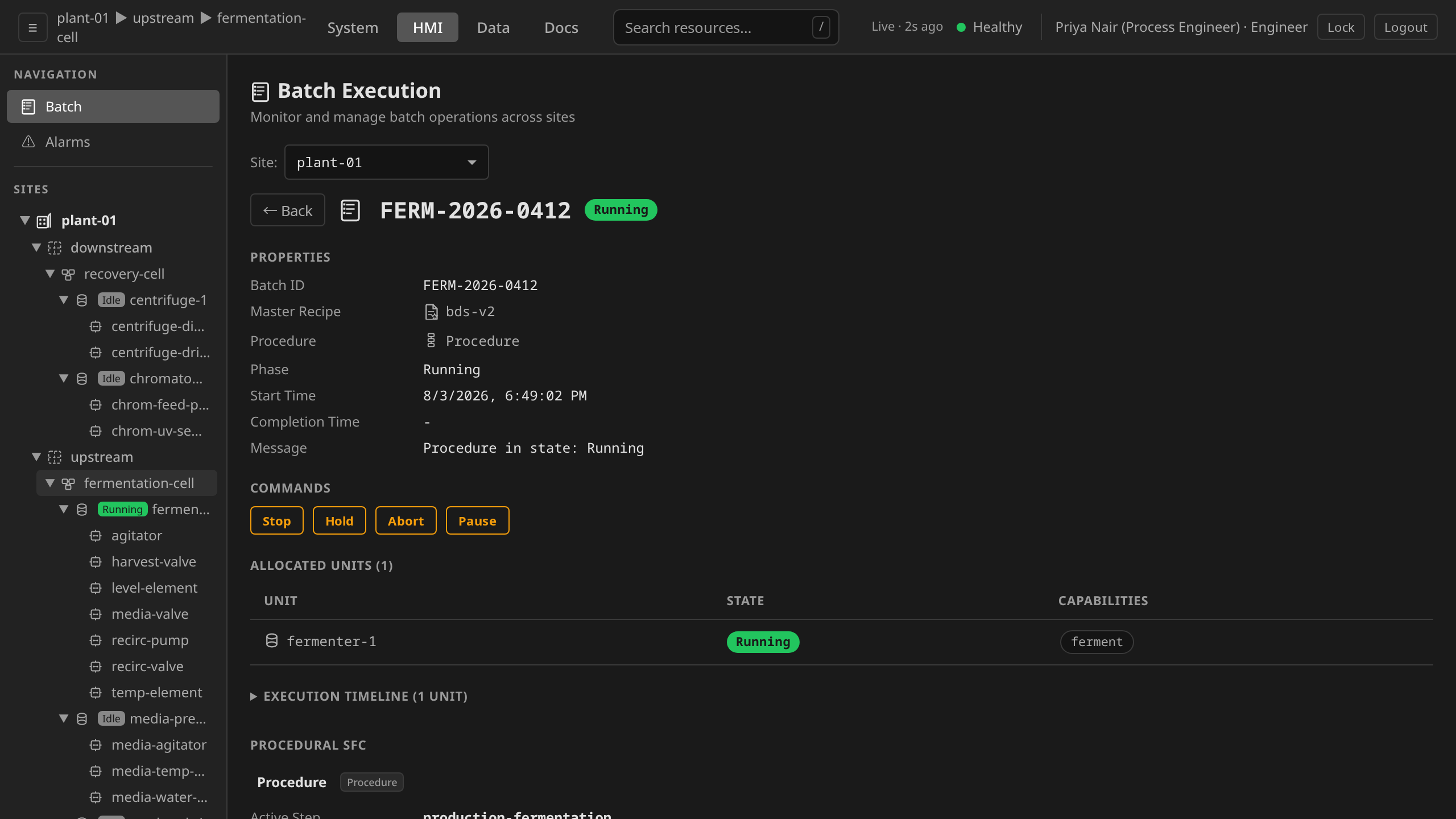
/hmi → Batch Execution. The batch list shows state, recipe,
progress, and timing for every batch. It opens with the batches that
are executing first, then the ones waiting to start, then the finished
ones, newest started first within each group. Clicking a column header
replaces that order with the column's, and the choice is kept while the
list refreshes. Click a row for the detail view with properties,
allocated units, execution timeline, and the procedural SFC hierarchy.
The Execution Timeline is a per-unit gantt of phase activity. It starts collapsed for single-unit batches (where the procedural SFC drill and events table already cover the same information) and auto-expands for batches running across two or more units, where cross-unit overlap is harder to read from a flat list. The summary shows the unit count so you can see the cardinality at a glance. Click it to expand or collapse.
dcs get batches -s houston-plant
dcs get batch batch-001 -s houston-plant    # detail view (JSON)
dcs get procedures -s houston-plant
dcs get phases -s houston-plant
Drilling into the procedural tree¶
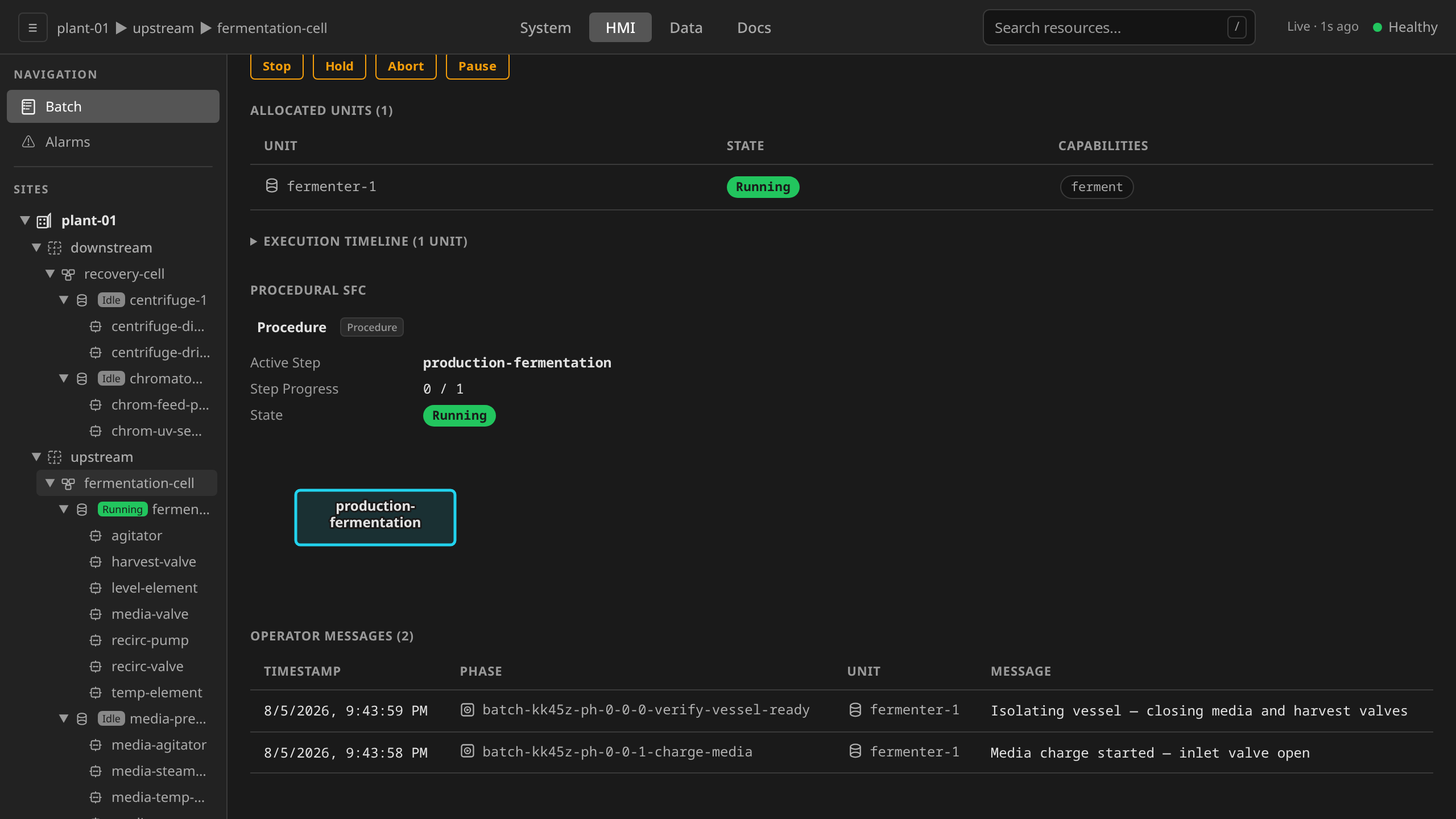
The batch detail page renders the procedural tree as a single Procedural SFC section embedded directly on the page. There is no separate detail page for Procedure, UnitProcedure, or Operation. The viewer drills in place. Before the batch starts, the same section appears as a Recipe SFC Preview built from the ControlRecipe so operators can verify the procedure they are about to launch.
Click any non-leaf step rectangle in the chart to drill one level
deeper. The viewer's own breadcrumb bar (above the chart) and the
◀ Back to
At the top level, the viewer renders the root Procedure's chart.
Each step is a UnitProcedure: in the docs-shots example, startup
(active, accent-coloured) and shutdown (queued). The Properties
banner shows step progress, scan count, and live state. Click any
UnitProcedure step to drill in.
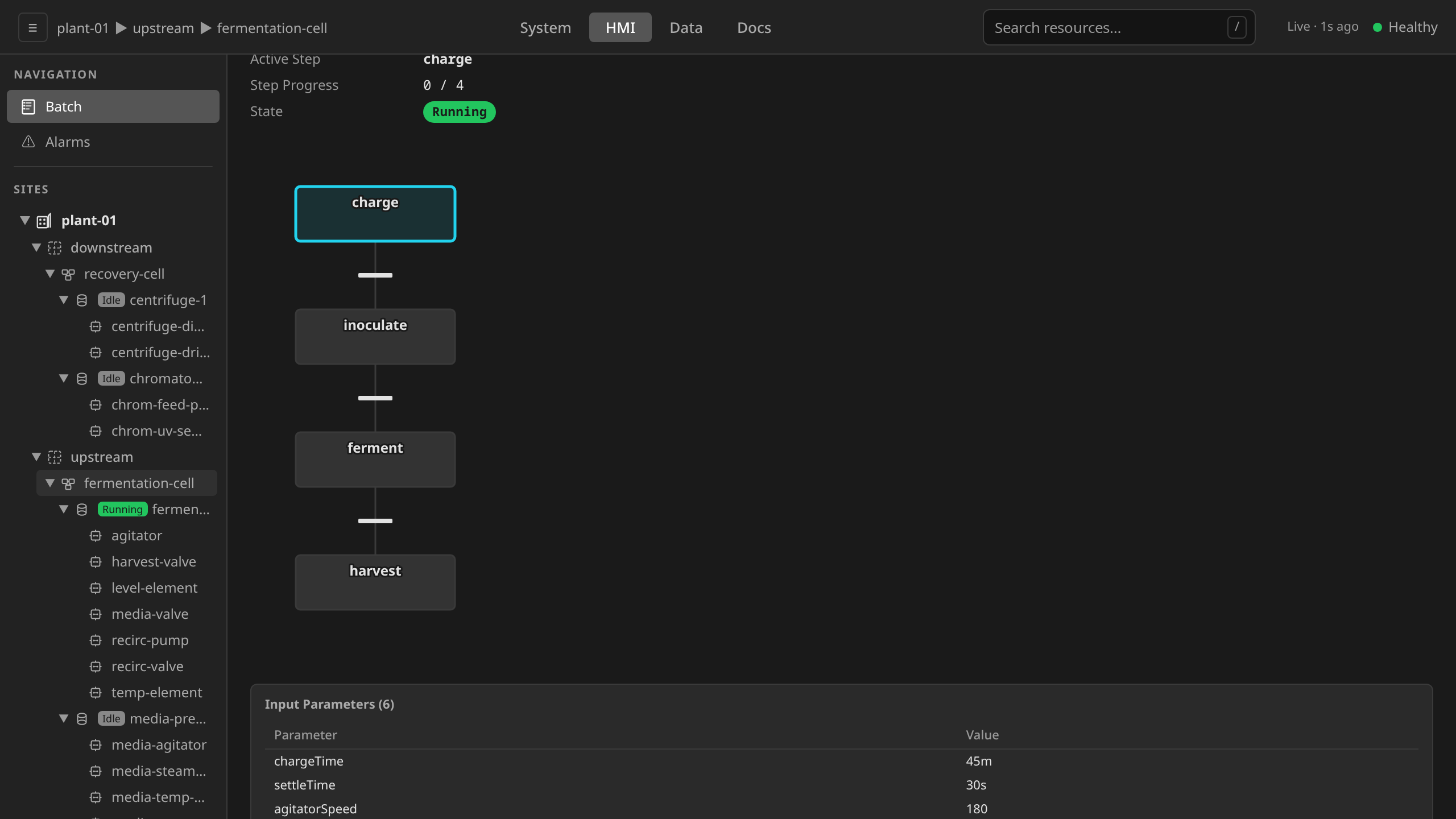
Drilling into startup swaps the chart for that UnitProcedure's
own SFC, with each step being an Operation. prepare is shown as
completed and dwell is active. The batch has finished opening
the inlet and sampling the level, and is now holding for the
parameterized dwell time before re-sampling. The breadcrumb
… ▸ startup [UnitProcedure] lets you jump back to the
Procedure level with one click.
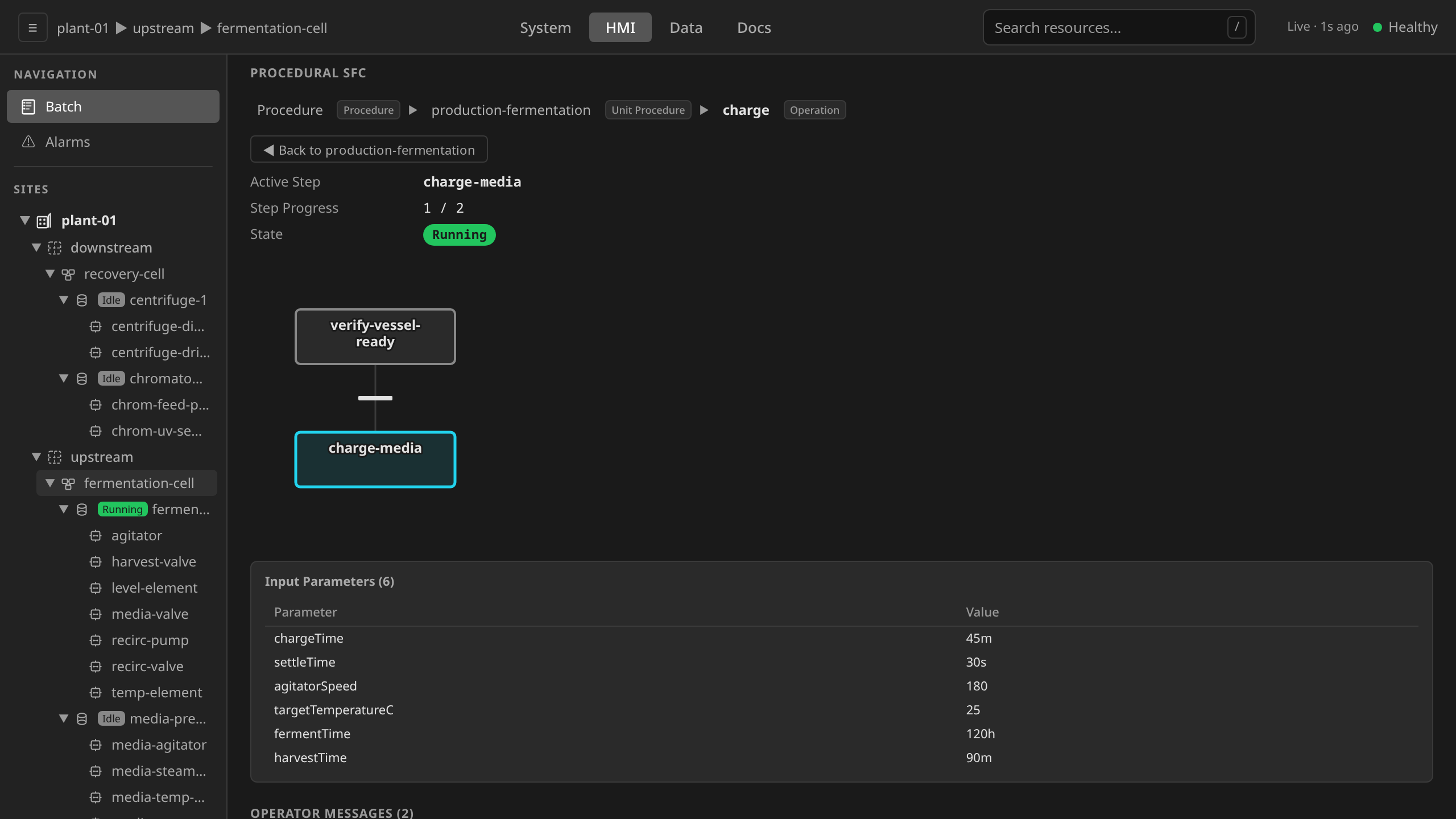
Drilling into dwell swaps the chart for that Operation's SFC,
where each step is a Phase. wait is active (the dwell timer is
running) and read-after is queued (it will re-sample the level
once the dwell elapses). The breadcrumb lengthens to reflect the
drill depth.
The leaf level. Drilling into dwell renders the full Phase SFC
execution chart with active step highlighting. Clicking any step
rectangle or transition bar opens a Structured Text code panel to
the right (see Reading the SFC
below). Live variable values are annotated inline on each
identifier in the ST.
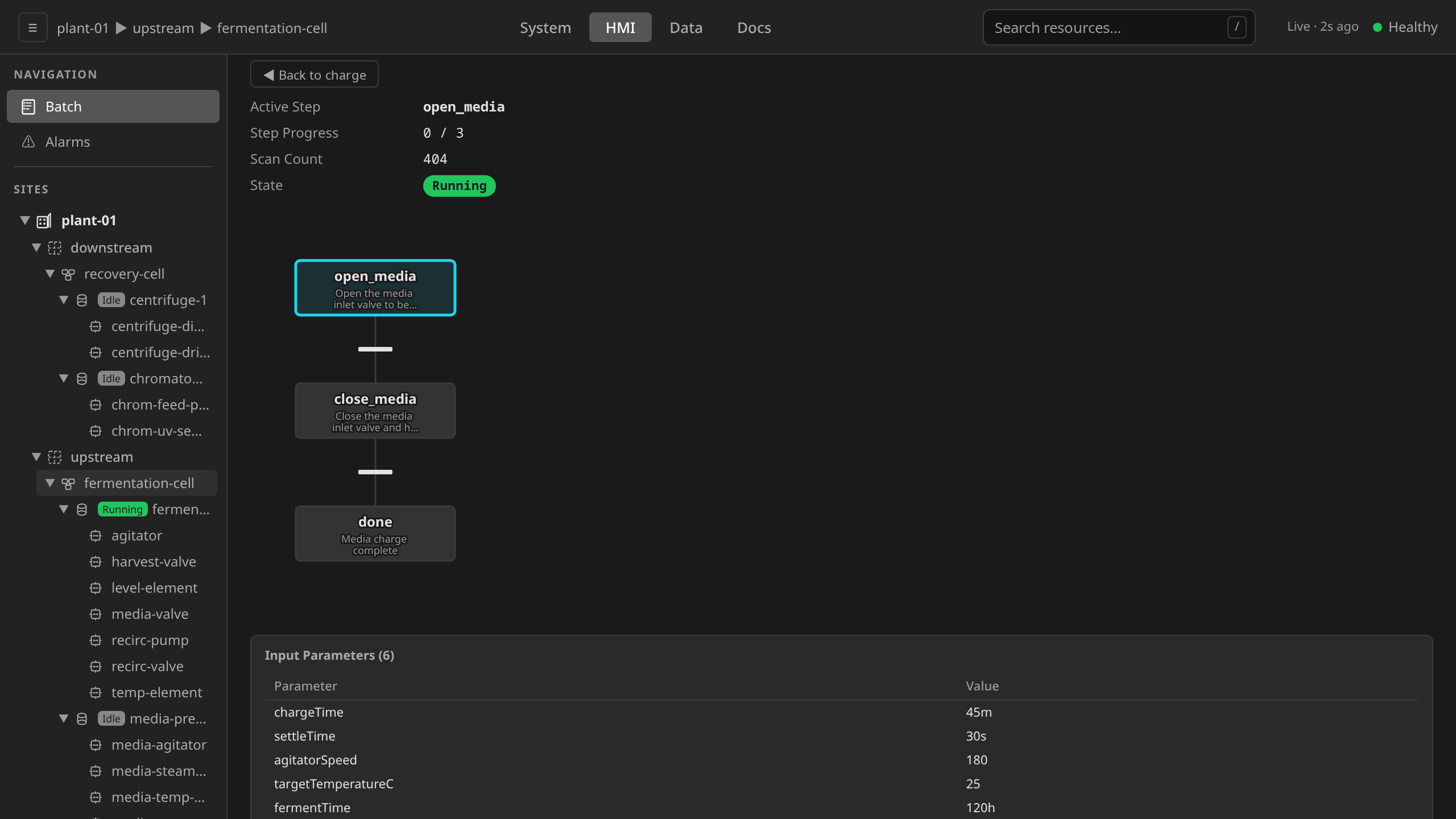
Reading the SFC: step and transition ST¶
The Phase SFC chart is interactive. Every step rectangle and transition bar is clickable. The selection reveals the Structured Text running on the unit runtime in the code panel to the right. This is the fastest way to answer "what is this phase actually doing right now?" without leaving the HMI.
Click a step rectangle. The code panel opens with the step's
actionST, the ST the unit runtime evaluates while the step
is active. Live variable values are annotated inline on the
matching identifiers. READ('level_sensor.PV') shows
the current PV, a parameter reference shows its resolved value,
etc.
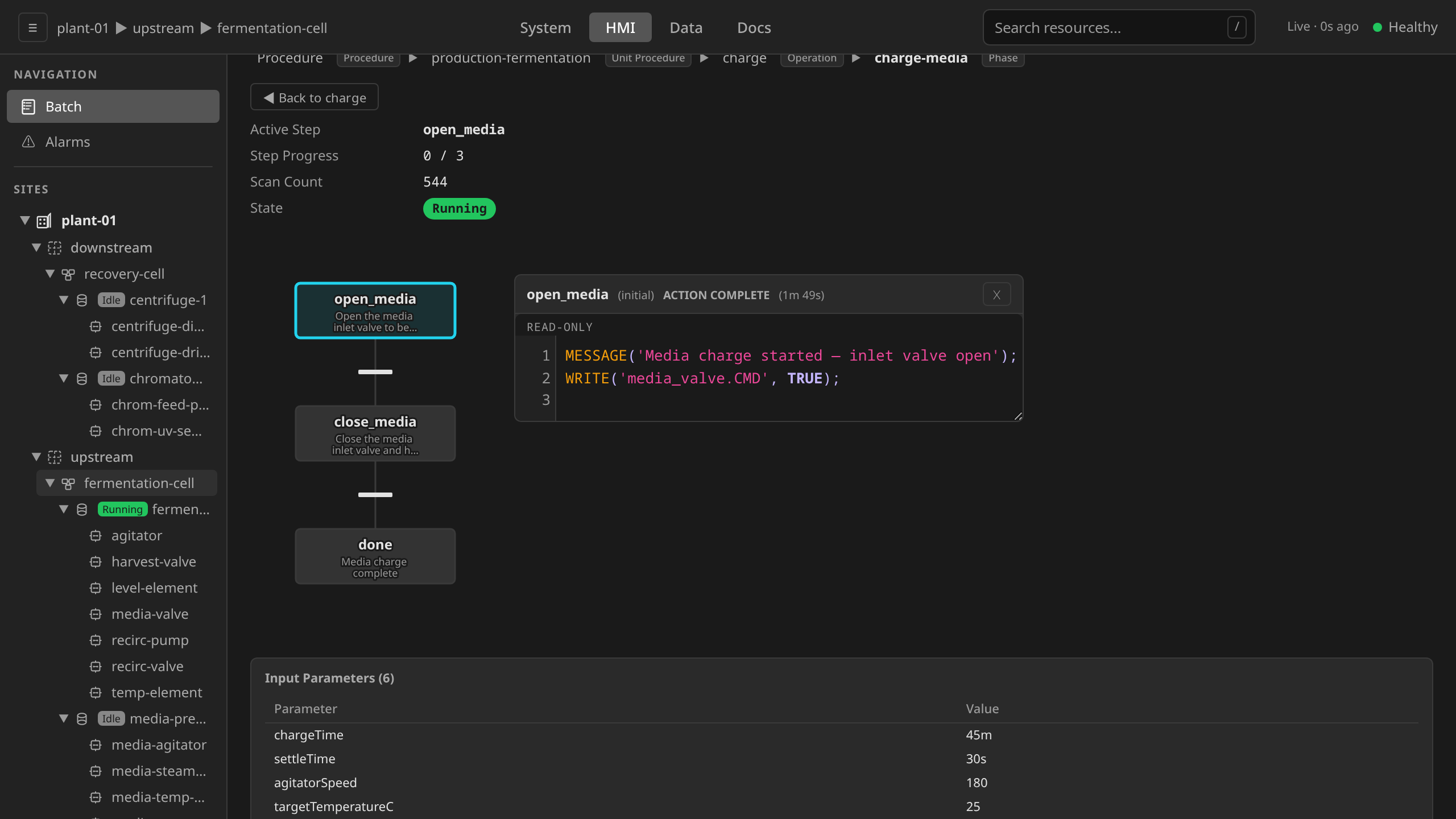
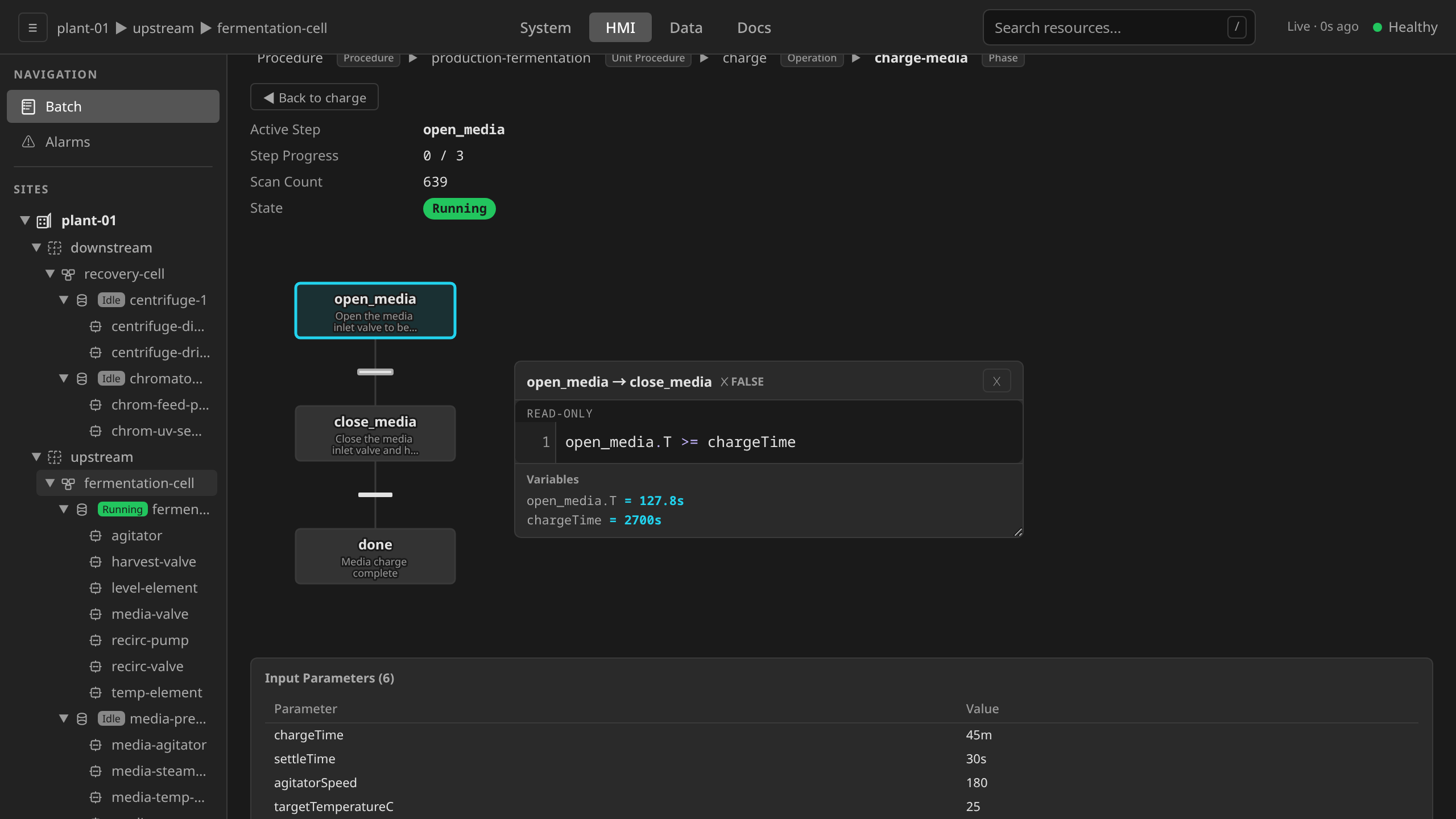
Click a transition bar (the short horizontal bar between two
steps). The code panel shows the transition's conditionST,
the boolean expression that must evaluate to TRUE before
the SFC advances. For mixing-dwell, that condition is
mix.T >= mixingTime (where mixingTime is a TIME-typed
parameter, the standard pattern for dwell timers).
For the operator toolkit this navigation unlocks (Hold / Restart to pause-and-inspect, forcing a tag through the faceplate, audit-trail trace), see Debugging a Running Batch.
The chart's two element types (step cards and transition bars)
share a small visual vocabulary. The screenshot below catches a
purpose-built 5-step charge sequence mid-flight on add_api:
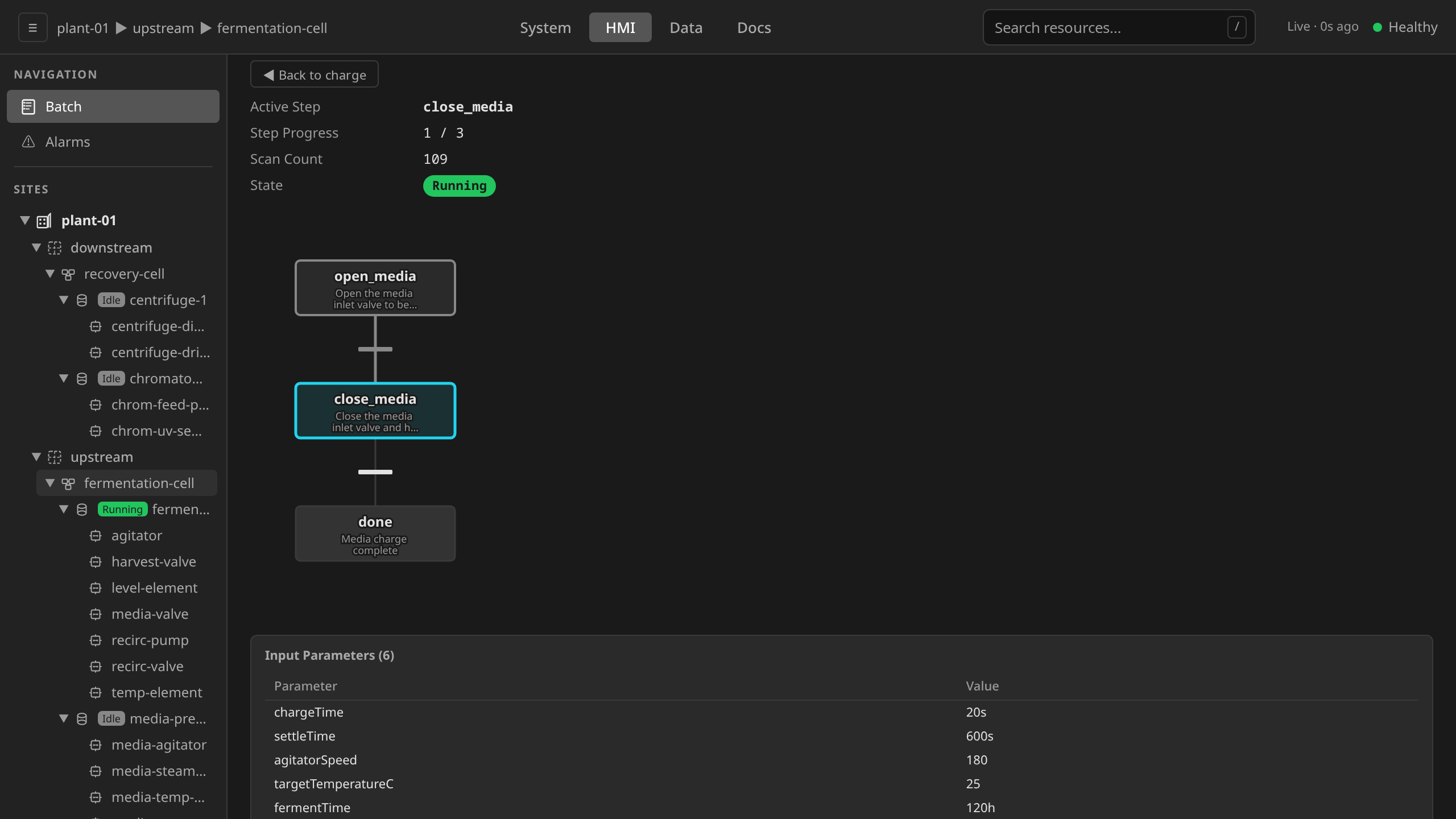
The chart paints a three-tier progress hierarchy at a glance:
- Active step (present) — teal fill and border. Exactly one step is active at a time. This is where the Phase is currently doing work. The color is uniform regardless of ISA-88 state. The state pill on the status banner carries the Running / Holding / Aborting nuance.
- Completed step (past) — history-gray border, no glyph, no fill change. The SFC has finished this step and moved on.
- Not-reached step (future) — dark gray fill, default border. The SFC has not yet activated this step on the current run.
- Fired transition (past) — the bar and the connecting wire share the history-gray colour, with a heavier line weight than untravelled wires so the path the SFC has already taken is readable from across the room.
- Unfired transition (future) — light gray bar and wire at the default line weight. The condition has not yet been evaluated TRUE.
Liveness on this chart is colour alone: there are no pulses or animations. The lone teal element is always the step happening now, and the gray trail behind it is the path it took to get there.
Phase status panels¶
The standalone Phase detail page complements the in-page viewer with
several diagnostics-only panels. Open it by clicking a Phase row in the
Batch detail's Operator Messages table (every MESSAGE() and
PROMPT() row links to its source phase). The panels auto-refresh every
two seconds while the phase is in an active state. The SFC engine
publishes step states and transition evaluation results every second to
the Phase resource status, which the UI polls.
-
Status banner — active step name, step progress, elapsed time, scan count, and timeout remaining. When a chart is parked on a step whose action has finished but whose outgoing transition has not yet evaluated TRUE, a blocking-diagnosis box also renders beneath the main row, naming the step and the FALSE condition. This box is the primary tool for diagnosing stuck phases. The screenshot below shows the mix step mid-dwell: the action
MESSAGE()already fired, so the step is parked whilemix.T >= mixingTimeis still FALSE.
The diagnosis workflow in motion: Respond badge → View Phase, both prompt affordances answered with signed reasons, and the banner naming exactly which guard is FALSE and why the chart is parked. -
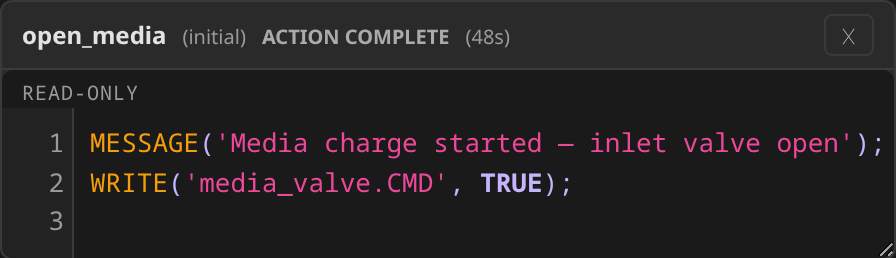
Step cards — clicking an active step in the SFC chart opens a code panel that shows:
- Action state: ACTION RUNNING or ACTION COMPLETE
background actionbadge when the step haswaitForAction: false(the action runs in the background, transitions evaluate immediately, and a transition that fires before the action finishes cancels it). Steps with the defaultwaitForAction: trueshow no badge.- Elapsed time since step activation
- The action's ST source
-
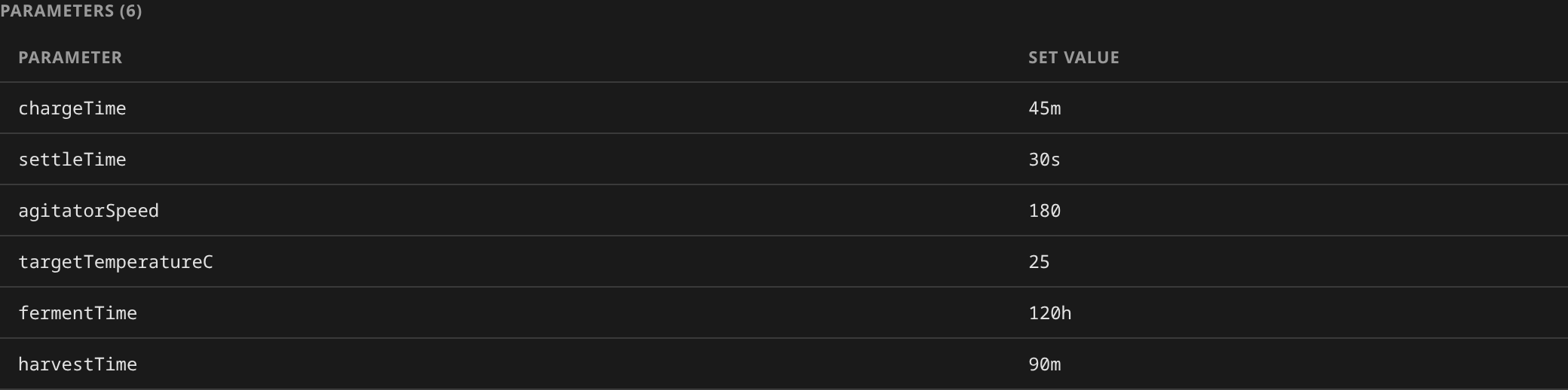
Runtime Values — parameter set values (Parameters card) and the live process outputs read back from equipment (Process Outputs card).
-
Operator Messages — timestamped
MESSAGE()andPROMPT()output from ST execution. See Operator messages and prompts below for the screenshots that cover this panel. -
Conditions — Kubernetes conditions with status, reason, message, and last-transition timestamp.

-
Commands — Phase-level ISA-88 commands flow through the parent Batch's command bar. The Phase detail page itself does not render command buttons. See Sending commands below for the normal command path.
Operator messages and prompts¶
Several ST builtins surface human-readable text from a running phase:
MESSAGE('text')— fire-and-forget output. The interpreter records the string and the wall-clock timestamp, and execution continues immediately. Use for status notes that the operator should see but does not need to acknowledge (MESSAGE('mixing-dwell: mixing in progress'),MESSAGE('charge-sequence: charge complete')).PROMPT('text')— blocking acknowledgement. The step pauses until an operator presses Acknowledge. The call returns the fixed non-empty sentinel'Acknowledged'.PROMPT_CHOICE('text', 'opt-a', 'opt-b')— blocking enumerated decision. The operator picks one of the authored options (one button per option). The call returns the selected option string.PROMPT_VALUE('text', min, max, 'unit')— blocking validated numeric entry (a measured pH, a weight, a lot count). Bounds are required and enforced server-side before the phase resumes. The call returns REAL.
Every prompt response is answered together with a reason. The reason field carries the e-signature justification recorded in the audit trail under 21 CFR Part 11 §11.10(c). The response shape is part of the builtin (ADR 0017). There is no free-text response field, so phase logic never string-matches operator typing.
Both calls land on the Phase resource as the chart runs. The procedural operator's status publisher flushes them once per second, and messages appear in two places in near real time:
-
Batch detail → Operator Messages — a roll-up table aggregating
MESSAGE()output from every phase in the batch, newest first, with a Phase link per row that opens the standalone Phase detail page.
-
Phase detail → Operator Messages — the same
MESSAGE()output scoped to a single phase. A pending prompt puts a Prompt Pending: … banner at the head of this panel. The banner is a jump link rather than a place to answer. Clicking it scrolls the page back up to the response card, which sits above the SFC chart.
In the screenshot above the mix step's
MESSAGE('mixing-dwell: mixing in progress') call has fired once on
step activation. MESSAGE() is a one-shot side-effect at the point in
the action body where it appears, so the panel does not get flooded even
on a long dwell.
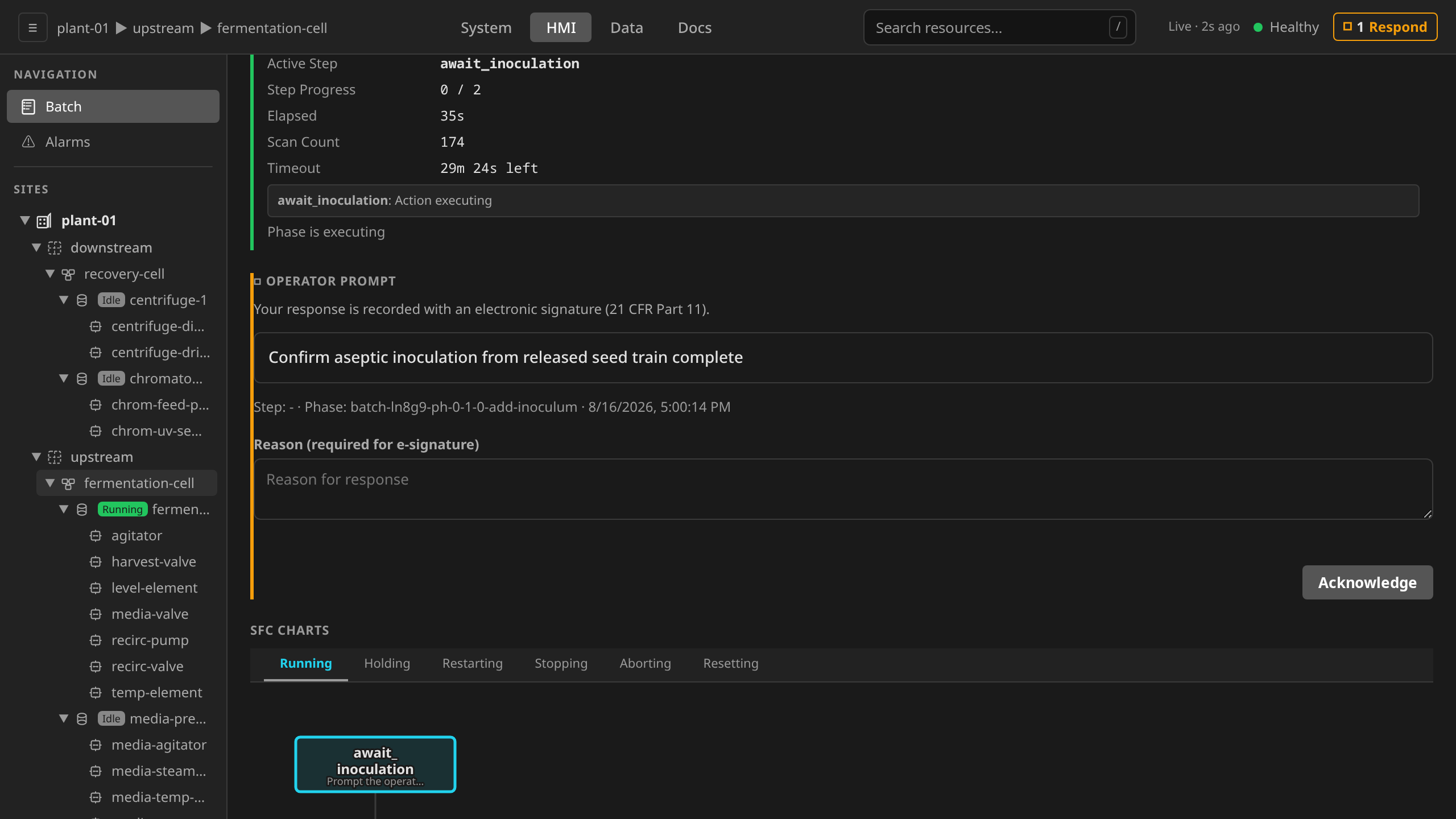
When an unanswered prompt is in flight, the Phase detail page carries an
inline response card directly under the execution status, and a Prompt
Pending banner further down at the head of Operator Messages. The card
renders the affordance matching the prompt's type (an Acknowledge
button, one button per authored option, or a bounded numeric input)
alongside the 21 CFR Part 11 §11.10(c) e-signature reason field. The
phase resumes once the answer is signed off. This card is the only place
a prompt is answered, wherever the operator reached it from. Answering
requires the prompt:respond action, which sits at the operate-lead
tier. A session without it reads the prompt and is offered no response
affordance.
#!st PROMPT() from the Phase detail page: drill in from the waiting-prompt chip, enter the e-signature reason, Acknowledge, and the phase resumes.
The clip above answers a parked prompt end-to-end: the
fermentation batch pauses on the add-inoculum phase's aseptic
seed-transfer check, the operator drills in from the parked
fermenter's waiting-prompt chip, fills the mandatory e-signature
Reason, and clicks Acknowledge. The acknowledgement is
delivered into the blocked PROMPT(), the ack <> ''
transition guard passes, and the phase resumes. The attestation is
written to the audit trail as a PromptAcknowledge record carrying
the electronic signature, correlated to the owning batch so it
reaches the batch production record. It does not appear in
Operator Messages, which only ever shows what a
MESSAGE() call in the chart emitted.
A waiting prompt also announces itself outside the phase page. A parked prompt blocks its whole batch, so the HMI surfaces it ambiently:
- Top-bar Respond badge — every HMI view shows an amber badge with the count of waiting prompts. Clicking it expands the list below the top bar (prompt text, unit, phase, wait time per row). The list is a band under the chrome. The view underneath moves down to make room for it and stays live while you read. Both row buttons are routes to the parked phase. Respond lands on that phase's detail page with the cursor already in its prompt card, and View Phase lands on the same page without taking the cursor. The card described above is the only place a response is given, so the affordances and the e-signature reason are the same wherever you reached it from. The badge stays in the top bar of the page you arrive at, so the rest of the queue is one click away. Close or Esc collapses the list.
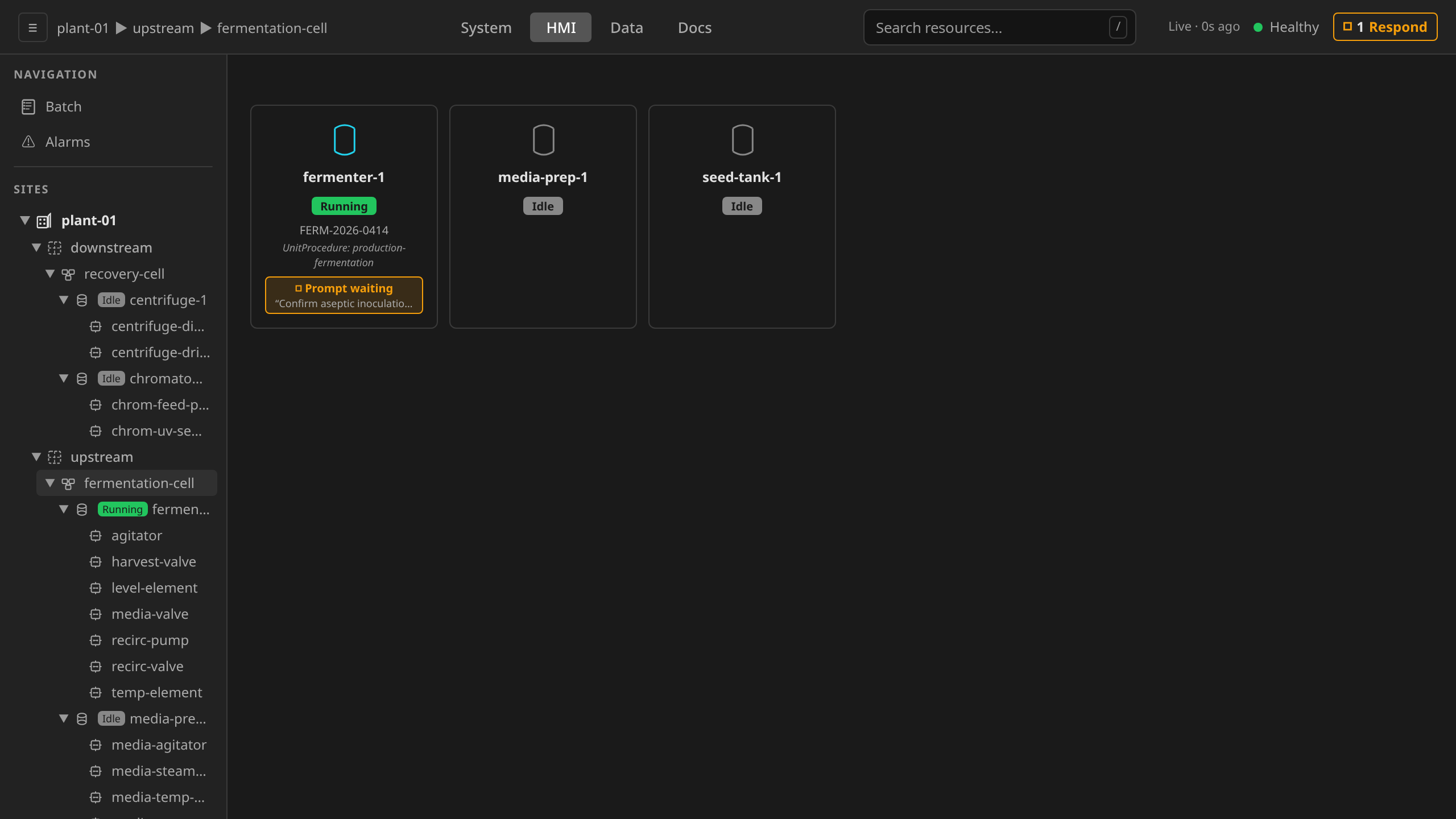
- Unit-card prompt chip — on the process-cell overview, the parked unit's card carries an amber Prompt waiting chip quoting the prompt text. Clicking it opens the parked phase.
The full message history is preserved in status.messages on the Phase
CRD and copied into the Batch Production Record at completion, so it
remains queryable after the batch ends.
Unit allocation¶
The HMI process cell view shows unit cards with their current state and batch allocation:
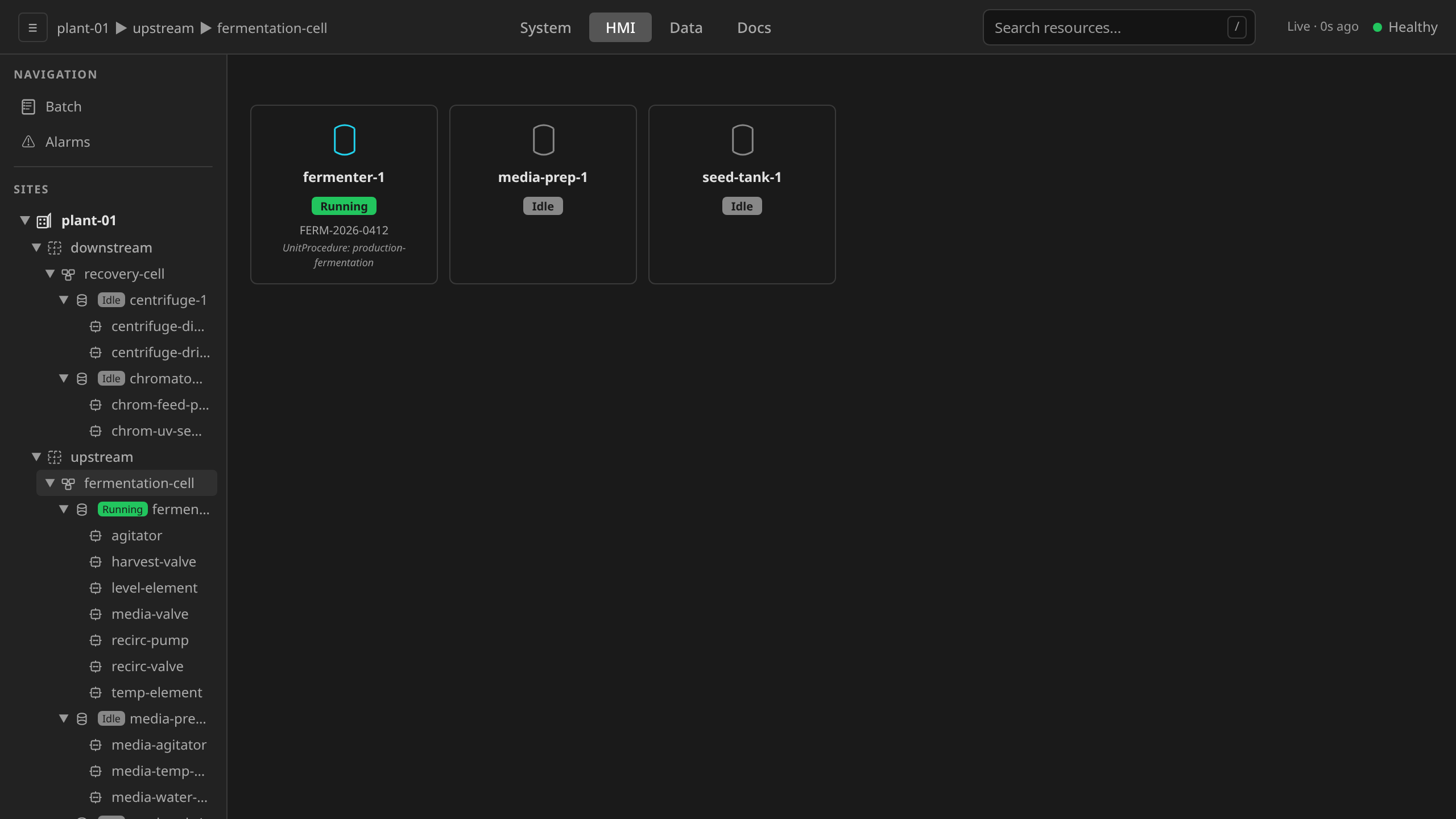
The batch controller allocates units by:
- Reading
targetUnitsfrom the MasterRecipe (capability-to-unit mapping), overlaid with the Batch'srequestedUnits(if any) - For a capability that names a unit, allocating that unit — never a substitute
- For a capability that names no unit, taking any available unit with the matching capability
- Checking that the unit is Idle and not already allocated to another batch
Allocated units are marked with a dcs.io/allocated-to=<batch-name> annotation. This prevents double-allocation across concurrent batches.
A named unit is a binding¶
A capability that targetUnits (or requestedUnits) maps to a unit is bound
to that equipment. If the named unit is busy, missing, or does not meet the
recipe's property constraints, the batch waits in Allocating with
status.allocationBlock naming that unit and why. It is never served from a
different unit that happens to advertise the same capability.
The substitute would satisfy the capability match and nothing more, and a
capability is much coarser than what running the recipe actually takes: the
procedural tree additionally needs the control modules the recipe's phase
templates declare in cmRoles. A batch allocated onto a substitute that lacks
them cannot have its procedure built at all, and running a batch on equipment
its recipe never named is a deviation in its own right. A requirement with
minCount above one still tops up from the general pool once the bound unit is
secured.
When several batches contend for the same capability, they allocate in queue
order: higher priority first, then earlier creation time. A batch that is
not at the head of the queue waits: stable facts about the block (the
capability and which units hold it) are reported in
status.allocationBlock, while the live queue position is emitted as a
Kubernetes Event (reason AllocationQueued, visible in
kubectl describe batch) and shown in the UI's batch list and detail views,
which compute it on demand. Queue rank is deliberately kept out of status.
It changes whenever any sibling batch moves, and persisting it would churn
etcd. If the controller cannot determine queue order
(for example, a transient API error while listing contending batches), it
retries with backoff and keeps the queue order intact. Such failures are
counted in the dcs_batch_allocation_ranking_failures_total metric.
If allocation fails (no matching unit available), the batch retries every 10 seconds. The UnitsAllocated condition reports the failure reason.
The allocation is checked against the equipment on every pass¶
An allocation is one fact recorded on two objects. The Batch names the unit in
status.allocatedUnits, and the Unit names the batch in its
dcs.io/allocated-to annotation and status.allocatedTo. A running batch
re-reads both on every reconcile and acts on any disagreement, so an allocation
can never outlive the equipment it refers to.
status.allocatedUnits records the Unit's metadata.uid alongside its name.
Names are reused. UIDs are not. That is what lets the controller tell a Unit it
still holds from a replacement that merely wears the same name: the case a
plant-model rebuild, a GitOps prune cascade, or a kubectl delete unit under a
running batch produces.
| What the check finds | What the batch does |
|---|---|
| The unit no longer records the claim, and nothing else holds it | Re-asserts the claim and keeps running. The batch raises an AllocationReasserted event; nothing about the run was invalid. |
| The unit was replaced — same name, different UID | Re-asserts the claim so the vessel is not offered to a waiting batch, then Holds with AllocationLost naming the equipment. The replacement is Idle with its runtime restarted and its state gone, so continuing is not safe. |
| Another batch holds the unit | Holds with AllocationLost naming that batch. The claim is never taken back — only the holding batch or an operator can release it. |
| The unit is gone entirely | Holds, reported as a capability violation (unit … not found). |
A held batch keeps running the same check. A claim dropped while it waits is
re-secured before the next batch can take it. A claim it cannot recover
blocks Restart and reports the loss.
Starting a batch on equipment in Manual mode¶
Start is refused when any unit the batch would allocate is in ISA-88 Manual
equipment mode. The message names the units:
cannot start batch: unit(s) in Manual equipment mode: fermenter-1.
A unit in Manual refuses the Start and holds it pending; switch it to
Automatic first
The refusal exists because the alternative is silent. Manual mode means the
operator holds the equipment (ISA-88 Table 1). While that mode stands, the unit
controller refuses every progression command: Start, Resume and Restart.
It does not drop the command. It keeps the command pending and retries it the
moment the unit returns to Automatic. It records
Unit.status.conditions[ManualModeBlocked] while it waits.
Without the pre-flight, none of that reached anyone. Allocation does not read
equipment mode, so a Manual unit is an ordinary candidate. The procedural layer
mirrors Start to the unit and advances its own state machine without reading
the answer back. The result was a batch reporting Running, a phase reporting Running, and
equipment sitting Idle. The only record of it was a status condition no
surface rendered.
Switch the unit to Automatic and command Start again. The mode selector is on
the unit's detail page in the engineering UI, and dcs mode sets it from a
terminal:
dcs mode Unit fermenter-1 Automatic -s plant-01
dcs command Batch FERM-2026-0814 Start -s plant-01
The new-batch form's pre-flight panel warns about a unit in Manual before you commit to Create, on a row that appears only when there is one to name. It does not disable the Create button, for the reason above.
When the switch happens after the batch is running¶
No pre-flight can see that. An operator taking a unit to Manual mid-run stops
its progression from the next command onwards, and three surfaces carry the
answer. The batch's Allocated Units table gains a Progression cell on
that unit's row, reading Manual — Start pending beside the Idle state badge
that is already disagreeing with the batch header. The unit's own detail page
gains a Progression row in Properties. It carries the same verdict, with
the reconciler's own sentence under it naming the procedural element whose
command is being held. The site's Units tab gains the same column, so the
answer is readable for a whole site at once.
Every one of them appears only when there is something to say, so a site whose units are all accepting their commands sees none of them.
The pending command is not lost. Returning the unit to Automatic retries it, and the surfaces clear.
When the unit refused the command outright¶
The same cell carries the other way a unit stops taking what the batch sends it. Where Manual mode holds a command pending, the ISA-88 state machine can refuse one outright, because the command is not valid from the state the unit is in. That command is consumed and nothing retries it, so what stands is the divergence it left behind: the procedural layer advanced its own state machine and the equipment did not follow.
The cell then reads the command and the state that refused it:
Hold refused in Held
Hovering it shows the reconciler's own sentence, which also names the transition rule. The Unit page prints that sentence outright, under the verdict, where there is room for it.
From a terminal the same answer is a column:
dcs get units -s plant-01
NAME          STATE  PROCESS CELL       CONTROLLER               RUNTIME    BUILD    PROGRESSION
fermenter-1   Idle   fermentation-cell  fermentation-controller  Ready      current  Manual — Start pending
media-prep-1  Idle   fermentation-cell  fermentation-controller  Ready      current  -
seed-tank-1   Held   fermentation-cell  fermentation-controller  Not Ready  current  Hold refused in Held
The refusal is on the Unit itself as status.conditions[CommandRejected] with
status.commandRejection beside it, which is what every one of these surfaces
reads.
The verdict clears when the unit next takes a command, its own self-healing commands included. A unit that stops and resets on its own has left the state the refusal names, and the verdict goes with it. So does a unit the physical layer Holds for a runtime crash, a failover or lost field I/O.
A unit carrying both facts shows the Manual block, because that one is live and names the act that releases it. The refusal stays in the Unit's conditions.
Parameter overrides and formula selection¶
Parameters resolve in three layers (highest precedence last):
- MasterRecipe
parameterValues— base recipe defaults - Selected formula
parameters— batch-size-specific values (if the MasterRecipe definesformulas) - Batch
parameterOverrides— per-batch operator overrides
If the Batch specifies formulaRef, the named formula is used. If formulaRef is omitted and the MasterRecipe has formulas, the formula whose batchSize is closest to the Batch's batchSize is auto-selected. The selected formula name is recorded in status.selectedFormula and on the ControlRecipe for audit traceability.
Merge strategy within each layer:
- Parameters present in both: the higher-precedence value wins
- Parameters only in the lower layer: carried through unchanged
- Parameters only in the higher layer: added as new parameters
The resolved values land on the ControlRecipe (actualParameters) and surface in the batch's procedural SFC viewer once it starts.
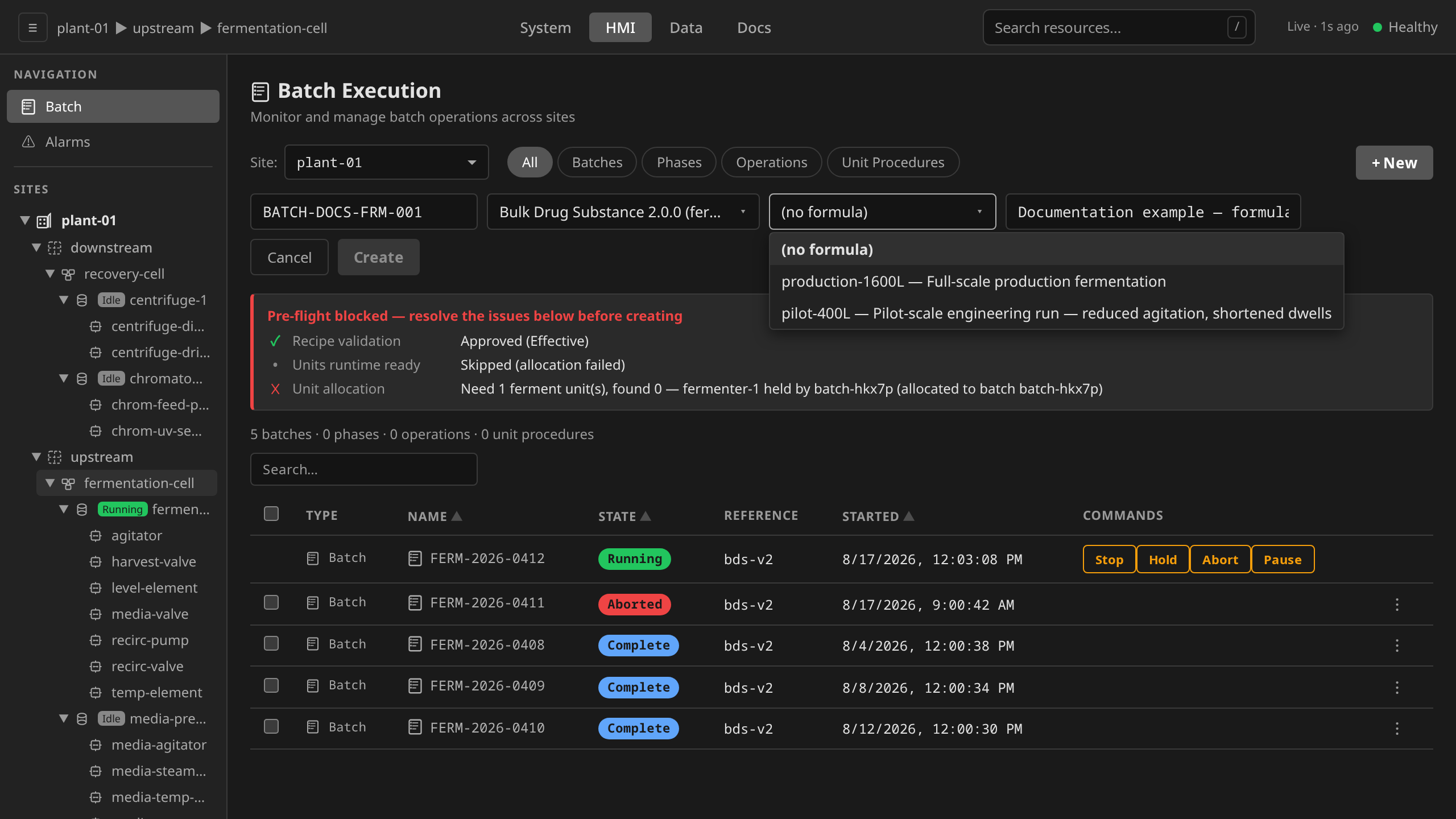
Formula selection is the only resolution layer the New Batch and
Edit Batch forms expose. The Formula dropdown sits between the
Master Recipe dropdown and the Description field, and is
only rendered when the selected MasterRecipe defines one or more
formulas. The first option is (no formula). Pick that to
fall through to the auto-select-by-batchSize behaviour.
Per-batch parameterOverrides are not editable from the form.
Use the CLI, API, or YAML paths below for that. Once the batch
starts, the merged parameter values appear on each phase tile in
the procedural SFC viewer (the actualParameters slot on the
ControlRecipe).
# Pick a formula explicitly
dcs create batch \
  --batch-id BATCH-2026-001 \
  --recipe chemical-mix-cell1 \
  --formula "500 L Batch" \
  -s houston-plant
dcs create batch does not accept parameter overrides on the
command line. To set them, use the API or YAML form.
apiVersion: batch.dcs.io/v1alpha1
kind: Batch
metadata:
  name: batch-2026-001
  namespace: site-houston-plant
spec:
  masterRecipeRef: chemical-mix-cell1
  batchID: BATCH-2026-001
  batchSize: "500"
  formulaRef: "500 L Batch"  # optional; auto-selected by batchSize when omitted
  parameterOverrides:
    - name: targetTemp
      value: "92"
    - name: mixTime
      value: "4500"
Apply with care
Applying a Batch manifest triggers immediate execution.
Use the UI or CLI for day-to-day batch creation. Raw YAML is
for automation pipelines and templated deployments only.
Sending commands¶
During a batch run every ISA-88 command targets the Batch, which propagates it down the procedural tree it created. A Unit is never commanded directly. The only procedural element addressed by name is the root of an ad-hoc execution, which has no Batch to command through. That path is covered on its own page.
Commands follow the ISA-88 state model. The set of valid commands depends on the current state of the target node:
| Current state | Available commands |
|---|---|
| Idle | Start |
| Running | Stop, Hold, Pause, Abort |
| Held | Restart, Stop, Abort |
| Paused | Resume, Hold, Stop, Abort |
| Complete | Reset |
| Aborted | Reset |
| Stopped | Reset, Abort |
For a terminal-state Batch, the gateway strips Reset from
validCommands: batches are one-time execution instances per ISA-88, so
a terminal-state batch shows an empty command bar. Operators delete the
batch and create a fresh one, and a reset is deliberately unavailable
(see internal/gateway/batch.go:batchCommandsForState). The child
Procedure / UnitProcedure / Operation / Phase nodes cannot be commanded
directly at all. Every interface (UI, CLI, REST, WebSocket) refuses a
command addressed to a batch-owned procedural element, per ISA-88 §7.3.2.
Commands are sent from the Batch Execution view:
- Click a batch and choose a command from the command bar. The command targets the Batch, which propagates it down its procedural tree.
- Individual nodes in a batch's procedural tree are read-only views. They carry no command bar. All commands go through the owning batch. (The Phases / Operations / Unit Procedures type-filter chips also surface ad-hoc runs, and the root of one does carry a command bar, as Ad-Hoc Execution covers.)
The equipment faceplate carries no ISA-88 command buttons. All commands flow through the Batch Execution view. See Equipment Operation for the operator workflow.
A Held batch shows the recoverable-deviation command set. Restart resumes from the same SFC step, Stop drains to a clean stop, and Abort goes to safe state immediately. A Running batch instead shows Stop / Hold / Pause / Abort. The command bar only renders the commands valid for the current ISA-88 state.
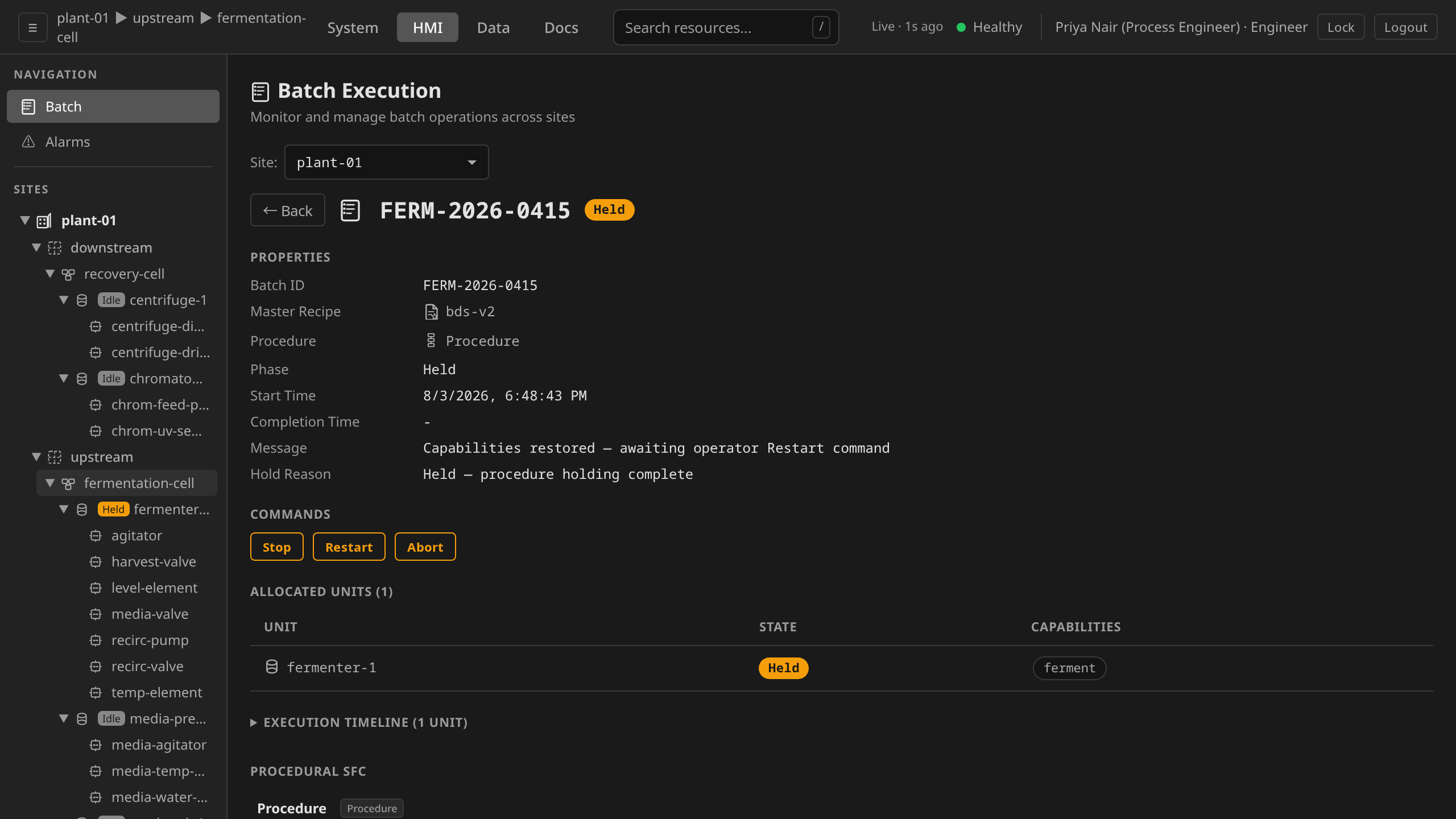
The two outcomes below run live on the Batch Execution list: a
production lot is Held (through the reason ceremony every
irreversible command requires) and then Restarted to continue, while a
second lot queued behind it for the same vessel is Aborted through
the typed-name ceremony to a terminal Aborted. Each command writes a
21 CFR Part 11 audit line carrying its operator reason, shown in the
closing audit trail.
/hmi → Batch Execution.
The other half of the command set runs below on a throwaway pilot lot:
Pause flips the row's live command cell to the Paused set (Resume
appears), Resume brings the Running set back, and Stop (through
the reason ceremony every irreversible command requires) lands the
batch in the terminal
Stopped phase: a controlled ISA-88 end with no failure in it. The terminal
detail carries no command bar at all, and the Batch Production Record
section renders with its download links before the Delete ceremony
removes the lot.
Stopped phase, the absent command bar + BPR links on the terminal detail, and the Delete ceremony.
dcs command Batch batch-001 Stop -s houston-plant
For a batch, the only valid kind is Batch. The CLI rejects Unit
and Procedure outright, and the gateway rejects a Phase,
Operation or UnitProcedure that belongs to a batch. Valid
commands: Start, Stop, Hold, Pause, Resume, Restart,
Abort, Reset.
When a Restart does not recover the batch¶
Restart re-runs the phase that was held. A phase whose ActionChart fails
again for the same reason self-holds again, and the batch returns to Held
carrying the failure that caused it. That is the whole of what a Restart can
do about a condition the equipment or the recipe has not resolved.
The batch reports that outcome. It does not stay in Restarting: each level of
the procedural tree forwards the Restart to the child that was holding it, once,
and follows that child back to Held when it returns there. The message
names the element and carries its reason, so a batch page shows
Restart did not recover UnitProcedure … : it returned to Held. Phase … :
ActionChart execution failed: …
, and the element's Ready condition records
RestartFailed. Fix what the message names and command Restart again, or
Stop or Abort the lot.
Acknowledging the alarm is not a precondition of recovery, and it does not
end the hold. Nothing in the batch, procedural or physical command paths
reads an alarm's acknowledgement state. Restart is accepted and forwarded
with the phase-execution alarm standing ActiveUnacknowledged, and the alarm
clears on its own when the phase reaches a terminal state, whether or not
anyone acknowledged it first. Acknowledgement is the ISA-18.2 record that an
operator saw the condition, and it is a precondition of deleting the alarm.
See Alarm Management.
Until #1823 the tree did none of this. A parent held its Restarting state
and re-commanded the child on every pass, so one operator Restart became an
unbounded retry: the phase's ActionChart was driven at the equipment again
every few seconds, the batch reported a transitional state that was never true
of the equipment for more than a moment, and the unit was dragged between
Running and Held behind it. It was found on the #942 bench campaign, where
a batch held on a shutdown phase ran that way for over three minutes and only
Abort ended it.
Batch completion and cleanup¶
When the Procedure reaches a terminal state (Complete, Stopped, Aborted), the batch controller:
- Maps the Procedure state to a Batch phase (Complete, Stopped, or Aborted)
- Records
completionTime - Deallocates units (removes
dcs.io/allocated-toannotation) - Sets the
Completecondition - Auto-creates a BatchRecord CRD capturing the batch metadata (ID, recipe, timing, outcome)
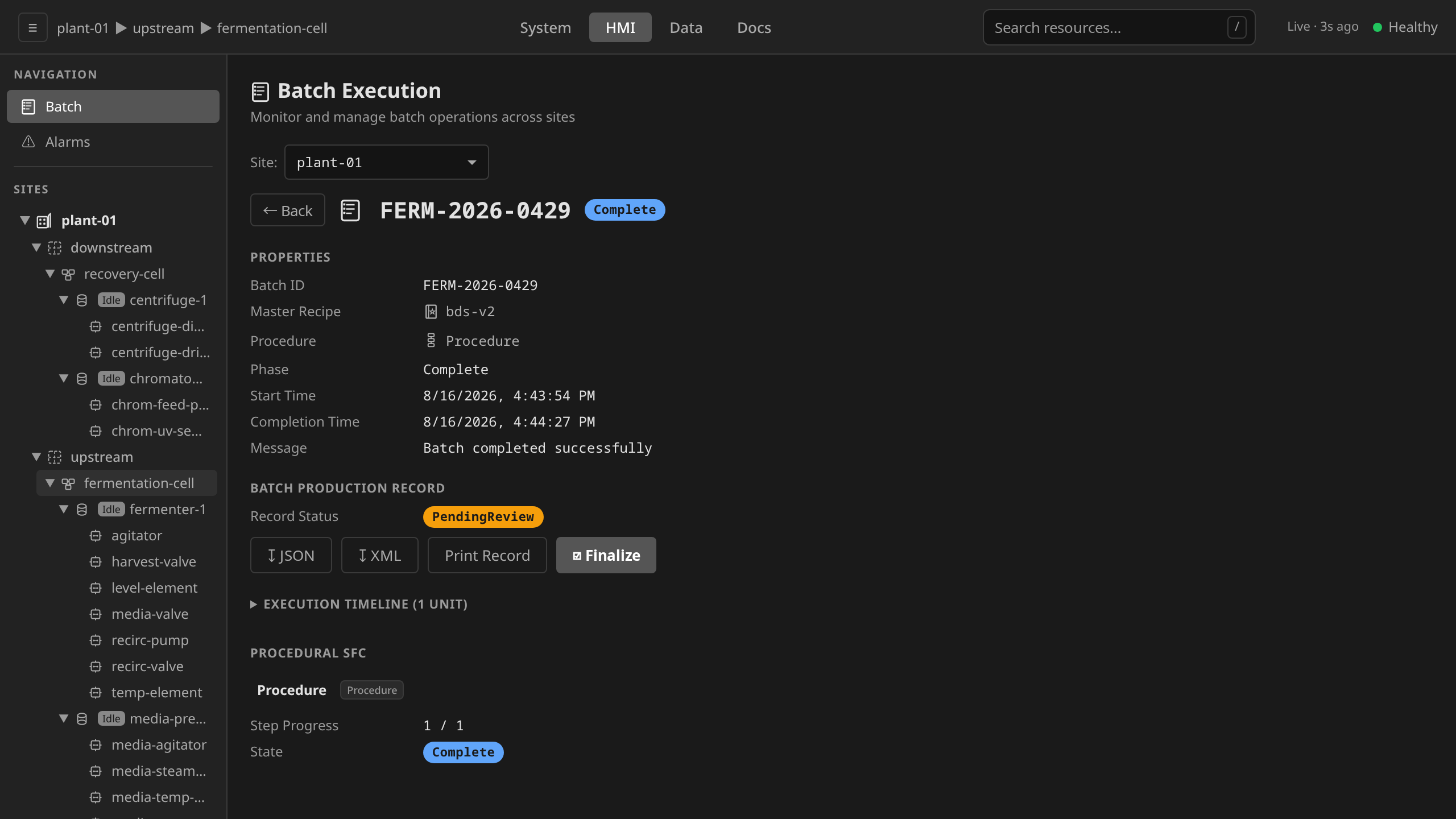
A successful run shows phase Complete, Batch completed successfully
in the message field, and a populated Batch Production Record section
that links to the consolidated BPR (see Batch Production Records).
An Abort leaves the batch in Aborted with Batch aborted in the
message field. The Batch's command bar is empty in this terminal
state. Batches are one-time per ISA-88, so the operator deletes
the batch and creates a fresh one. There is no in-place reset.
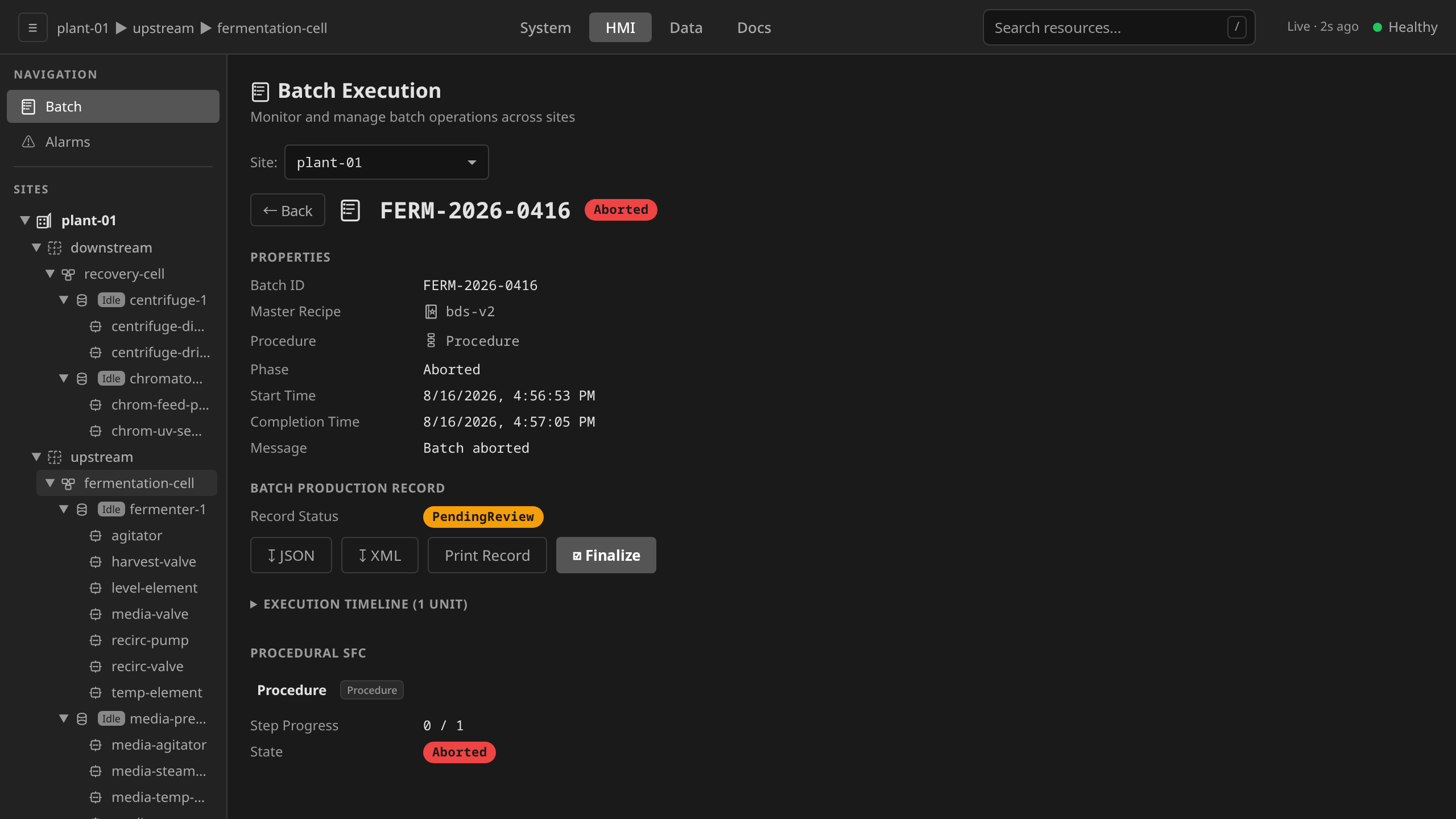
Once a batch reaches a terminal state the BatchRecord CRD is auto-created
and the consolidated production record becomes available on the Data
endpoint. See Batch Production Records for the BPR
schema (parameter values vs process outputs), the /data → Batch
Records workflow, finalization with electronic signature, and BatchML
export.
Deleting a batch¶
/hmi → Batch Execution → the batch row's actions menu
→ Delete. What that opens depends on what the batch is doing,
and the three tiers are deliberate (ADR 0059).
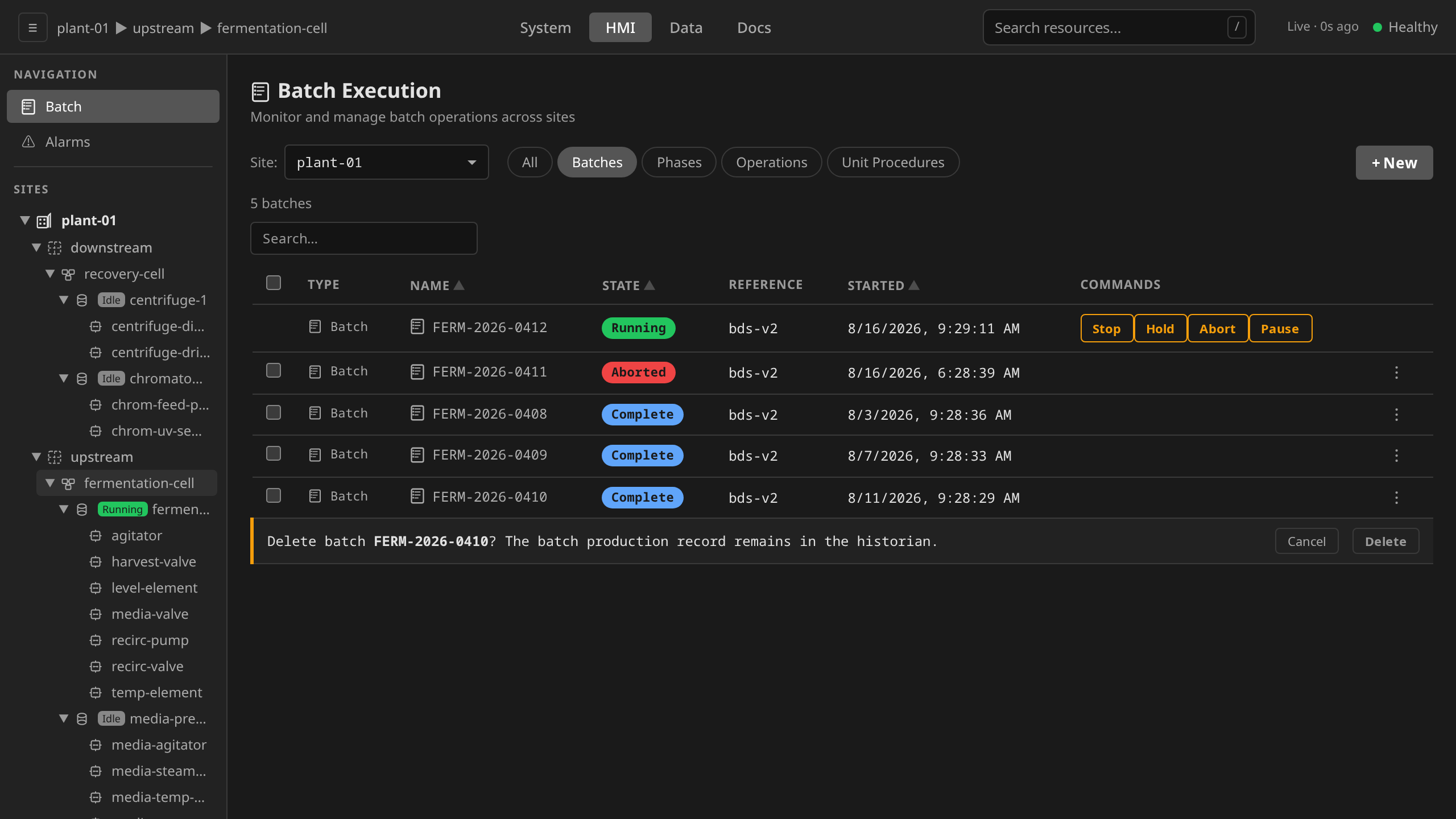
Deleting a terminal-state batch (Complete, Stopped, Failed, Aborted) is routine cleanup. It takes a bare confirm that expands under the row, with no typed name and no reason. The audit trail records the delete, and the batch production record remains in the historian.
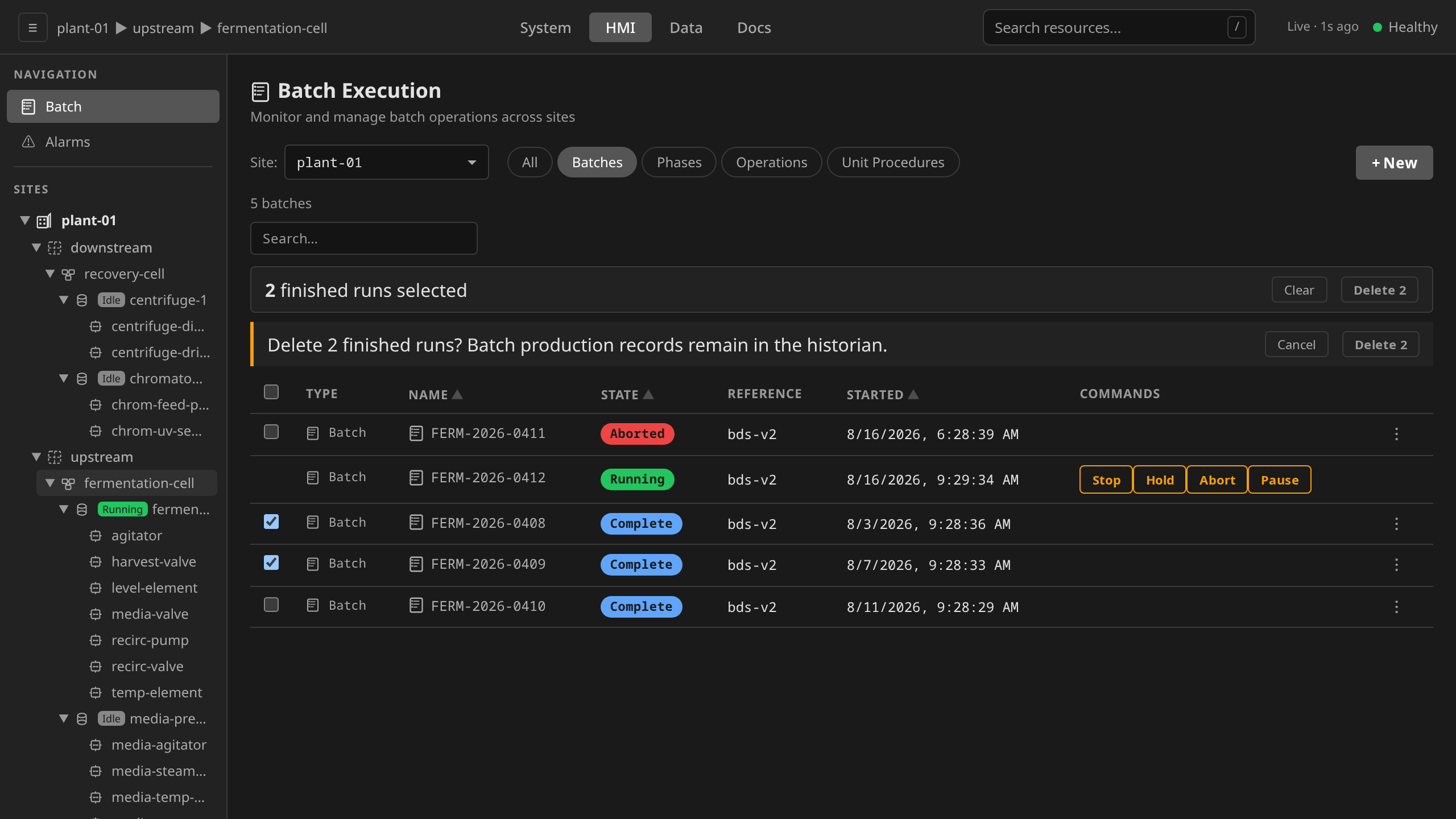
Finished runs also carry row checkboxes, so routine cleanup can select several and delete them behind one confirm. The delete is still one request per run, so the audit trail carries one record each. Only terminal rows are offered a checkbox, which is why a selection can never mix a finished run with a live one.
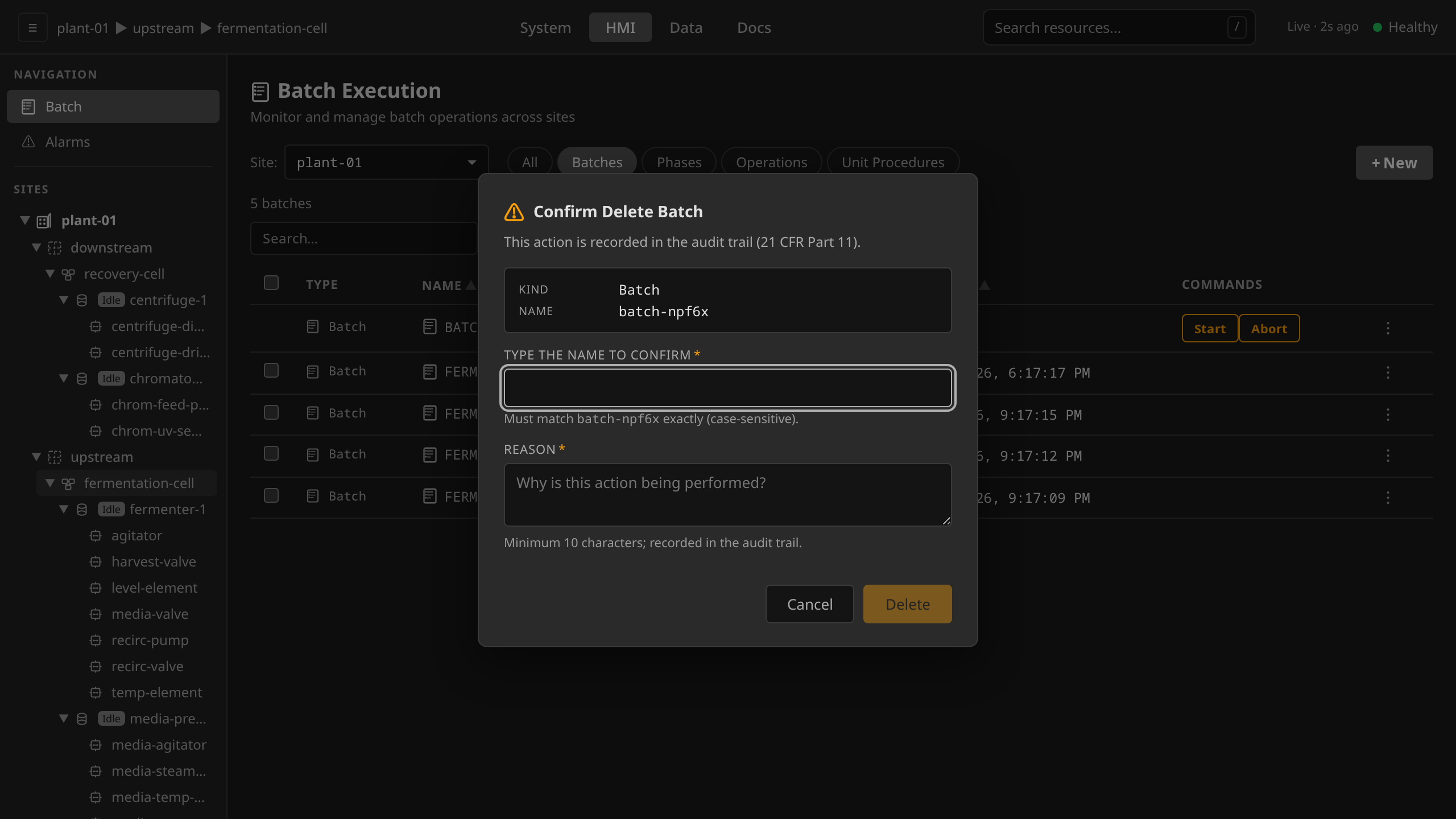
A batch that has not started yet keeps the destructive-action modal, which requires the batch name to be typed in plus a reason. The Delete button stays disabled until both are given. Such a batch reads Idle in the STATE column, which is its ISA-88 state. The CR phase is Pending. The name the dialog asks for is the resource name the gateway generated.
A batch with active execution offers no Delete at all, and the gateway refuses the API call with 409. Stop or abort it first, so the abort chart sequences the equipment to a safe state before disposal.
dcs delete batch batch-001 -s houston-plant
The batch finalizer ensures cleanup:
- Deallocates any remaining units
- Deletes the ControlRecipe
- Deletes the root Procedure (child resources cascade via ownerReferences)
Batch status conditions¶
| Condition | Meaning |
|---|---|
Ready |
Overall batch readiness. Tracks the current phase — False while Holding, Held or Failed. |
UnitsAllocated |
Whether units were successfully allocated |
ControlRecipeReady |
ControlRecipe instantiated |
ProcedureReady |
Procedural tree created |
CapabilityValid |
Whether the allocated equipment is still usable: False with reason CapabilityLost when a unit stopped satisfying the recipe, or AllocationLost when the batch no longer holds it |
Complete |
Batch reached terminal phase |