Device Enrollment Guide¶
This guide walks through bringing a new controller device (an x86_64 industrial PC or equivalent) into the control system. Enrollment has two distinct halves, and they are owned by different layers (ADR 0004):
- Cluster join — making the device a Kubernetes node. This is the deployment layer's job, done with whatever mechanism your cluster distribution provides (Talos machine config, k3s token, cloud nodegroup). The product takes no part in it.
- DCS registration — binding that node to a Controller resource in a site, labeling it for unit scheduling, and tracking its health. This is the product's job and is what the rest of this guide covers.
Next step after enrollment
Once the device is joined and reports Joined, the next step is to
attach I/O. See I/O
for the end-to-end workflow from IOModule authoring to a phase
running against real equipment.
sequenceDiagram
    participant Deploy as Deployment layer (talosctl, …)
    participant K8s as Kubernetes
    participant Op as Physical operator
    participant UI as Gateway UI / dcs CLI

    Deploy->>K8s: 1. Join node (machine config / join token)
    Note over Deploy,K8s: node carries dcs.io/site=<site> label
    K8s-->>Op: 2. Node appears
    Op->>Op: 3. Auto-create Controller CR (node discovery)
    UI-->>Op: (or: Controller CR pre-created by name)
    Op->>K8s: 4. Reconcile spec.nodeLabels onto node
    Op->>UI: 5. Controller: Pending -> Joining -> Joined
    Note over Op,UI: pre-created ahead of the join, it waits in Pending
Using the reference plant? The
plant-01plant uses simulation controllers (spec.simulation: true) that skip enrollment entirely — the physical operator creates a virtual Kubernetes node and maintains its heartbeat lease, no hardware involved. This guide is only relevant if you are enrolling a real edge device against your own control plane. See Deploy Your Own for the self-host track.
Prerequisites¶
| Component | Notes |
|---|---|
| Cluster-admin access via your distro's tooling | e.g. talosctl + machine config for Talos, a join token for k3s |
| DCS operators + gateway installed | Via the Helm chart |
| Enterprise + Site created | So that the site-<name> namespace exists |
| Device meets node requirements | x86_64, able to pull the unit-runtime image, host ports outside 32768–60999 free (see Architecture § Port Allocation Policy) |
Step 1: Join the node (deployment layer)¶
Join the device to the cluster with your distribution's own mechanism. The product does not broker join credentials. Node join is a change-managed infrastructure activity, performed with the same tooling that built the cluster.
For Talos (the reference deployments), generate a worker machine config and apply it, including the DCS labels at join time:
# patch.yaml — Talos worker machine config patch
machine:
  nodeLabels:
    dcs.io/site: newark-plant        # triggers auto-discovery (Step 2, Option A)
    dcs.io/device: edge-mixing-1      # optional: unit scheduling label
talosctl machineconfig patch worker.yaml --patch @patch.yaml -o node.yaml
talosctl apply-config --insecure -n <device-ip> --file node.yaml
The golden-path join runbook for the reference deployment lives in the deploy-reference repository, because the runbook is a deployment concern. For any other distribution, any join mechanism is fine. The product only sees the resulting Node object.
Step 2: Register the Controller¶
A Controller resource in the site namespace represents the device. There are two equivalent ways to create it. Pick one:
Option A: label-driven auto-discovery (recommended). If the node
joined carrying the dcs.io/site=<site> label (as in Step 1), the
physical operator discovers it and creates the Controller automatically:
- The Controller is named after the node and created in
site-<site>. - Any
dcs.io/*labels already on the node are captured intospec.nodeLabels. - The Controller is annotated
dcs.io/discovery: auto. Removing the site label from the node cleans it up again. - Control-plane nodes are never auto-discovered.
This is what that looks like on real hardware. The clip was recorded
against the bench, a bare-metal Talos cluster with two industrial PCs. It
shows one join on one day, and it is not a measured procedure: the
Controllers table with one device in it, talosctl apply-config at a
machine in maintenance mode, the wait through install and reboot elided,
and the second row arriving on its own with the address the kubelet
reported.
dcs.io/site in its machine config, the physical operator creates the Controller, and the Address is read from the kubelet. Nobody typed it.Option B: pre-create the Controller by name. Create the Controller before (or after) the join. The reconciler binds it to the cluster node of the same name as soon as that node appears. Use this when the device's identity should exist in the DCS (and in GitOps) ahead of the physical install.
A Controller created this way reads Pending until its machine is joined, with an empty Address and Node. That is the phase for a device the control system knows about and has not met, and it is a state a Controller can hold for months without anything being wrong:
- Open the gateway UI in your browser.
- Select a Site from the sidebar.
- Click the Controllers tab.
- Click + Add Controller.
- Enter:
- Name — must equal the Kubernetes node name the device will
join with (e.g.,
edge-mixing-1). - Node labels — optional, comma-separated
key=valuepairs (e.g.,dcs.io/device=edge-mixing-1).
- Name — must equal the Kubernetes node name the device will
join with (e.g.,
- Click Create.
dcs create controller --name edge-mixing-1 \
  --labels dcs.io/device=edge-mixing-1 \
  -s newark-plant
POST /api/v1/sites/newark-plant/controllers
Content-Type: application/json

{
  "name": "edge-mixing-1",
  "nodeLabels": {
    "dcs.io/device": "edge-mixing-1"
  }
}
Step 3: Node labels for unit scheduling¶
Controller.spec.nodeLabels is the product-side source of truth for the
device's DCS labels. The physical operator converges these labels onto
the bound node. You do not need to run kubectl label, and the labels
do not have to be present at join time:
- Only labels under the
dcs.io/prefix are reconciled. The operator never touches other node labels. - Labels the operator applied earlier but that were removed from
spec.nodeLabelsare removed from the node again (tracked via thephysical.dcs.io/applied-node-labelsannotation). - Editing node labels in the UI or via
PATCH /api/v1/sites/{site}/controllers/{name}takes effect on the live node.
The key convention is dcs.io/device=<unit-name>: a Unit whose
spec.nodeSelector names that label gets its runtime pod scheduled onto
this device. See Architecture for the scheduling
model.
Step 4: Watch the Controller join¶
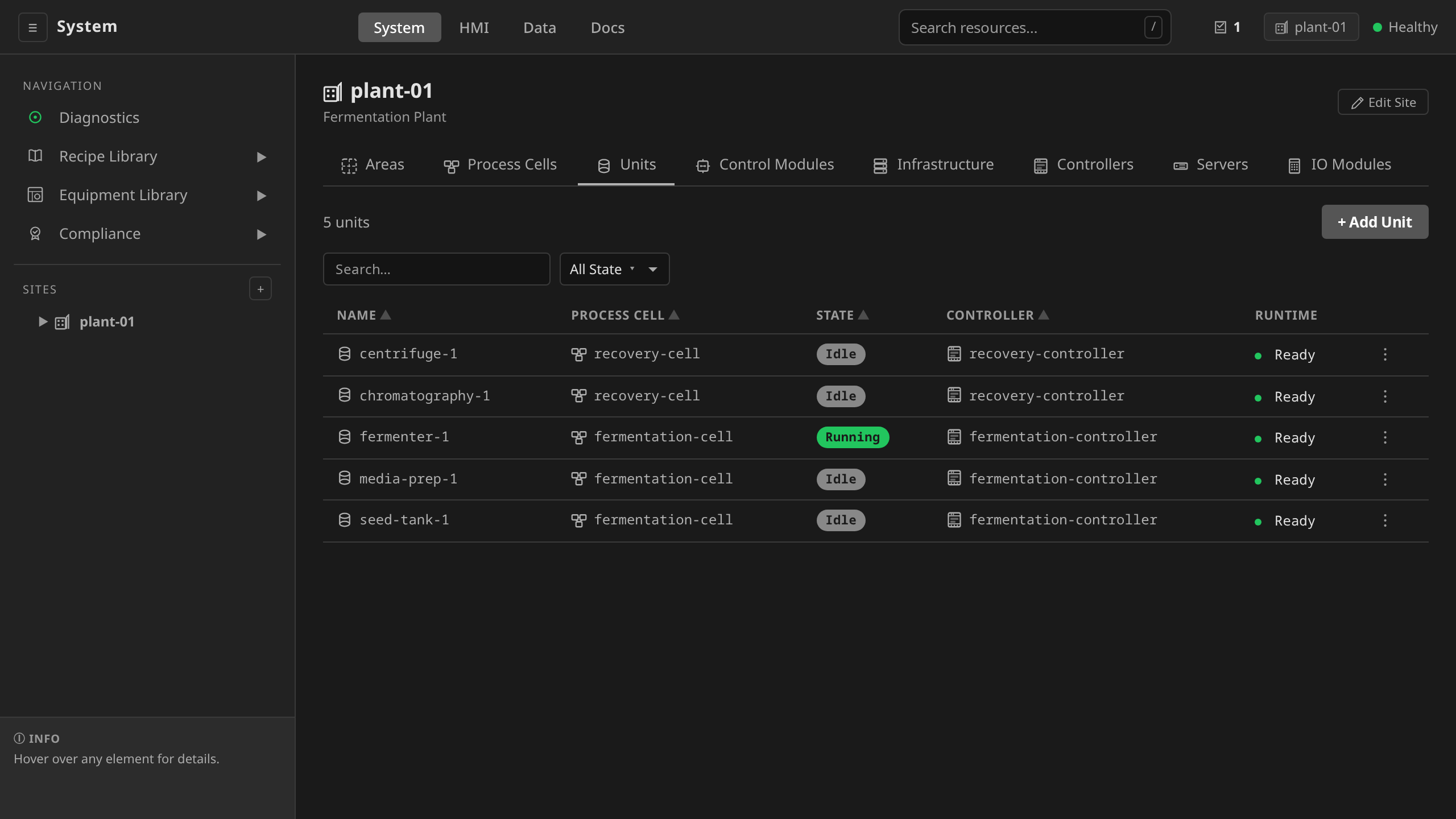
In the gateway UI, the Controller transitions through phases automatically:
| Phase | What's happening |
|---|---|
| Pending | No cluster node of the Controller's name has been observed. A Controller declared ahead of its hardware sits here until the machine is joined, however long that takes |
| Joining | A node of that name exists and is being bound: labels reconciled, address discovered. It is brief, so you may not catch it |
| Joined | The node is bound |
The Address column populates with the device's IP (discovered from the node's InternalIP) once the Controller reaches Joined.
The Controllers table re-reads while you have it open, on the same ten-second interval the sidebar tree keeps. Phase, Address and Health all move on their own, and a device that finishes joining arrives as a new row without a reload. The re-read pauses while you are using the table, so it will not close a row's actions menu or clear what you have typed into a filter. The same is true of the IO Modules, Servers and Infrastructure tabs beside it.
Phase is an adoption lifecycle, so it answers whether the device has been
taken into the control system. It is not a health readout, and it stays at
Joined if the device later stops answering, because an unreachable device is
still an adopted one. The Health column beside it is the readout for right
now: Healthy when the bound node is Ready, Degraded when the node is Ready
but the I/O probe is not running, and Offline when the node has stopped
reporting Ready. Hovering the health dot gives the reason behind it.
You can also watch from the CLI:
dcs get controllers -s <sitename>
# NAME            ADDRESS      PHASE    HEALTH    NODE
# edge-mixing-1   10.0.0.100   Joined   healthy   edge-mixing-1
Removing a Controller¶
Whichever path you use, the reconciler:
- Cordons the node (marks unschedulable)
- Drains the node, evicting every pod that is neither owned by a DaemonSet nor a kubelet mirror pod, and waits for those pods to leave
- Deletes the node from the control system, once the drain has finished
The drain decides whether step 3 happens at all. An eviction that a
PodDisruptionBudget refuses, or a pod still inside its termination grace
period, leaves workloads on the node, and the removal refuses to delete
a node out from under them. The Controller stays in Removing and
carries a NodeDrained condition naming the pods that are holding it back,
and the reconciler keeps retrying until they move. After five minutes the
condition reason becomes DrainTimedOut and the retry slows down, but the
removal is still refused until the node is empty.
/system → pick the site → Controllers tab →
click Remove next to the controller row → confirm the
dialog.
dcs delete controller edge-mixing-1 -s newark-plant
DELETE /api/v1/sites/newark-plant/controllers/edge-mixing-1
Note: removing the Controller does not unconfigure the machine itself. Decommission the node with your deployment layer's tooling (e.g.
talosctl reseton Talos), mirroring how it was joined.
Troubleshooting¶
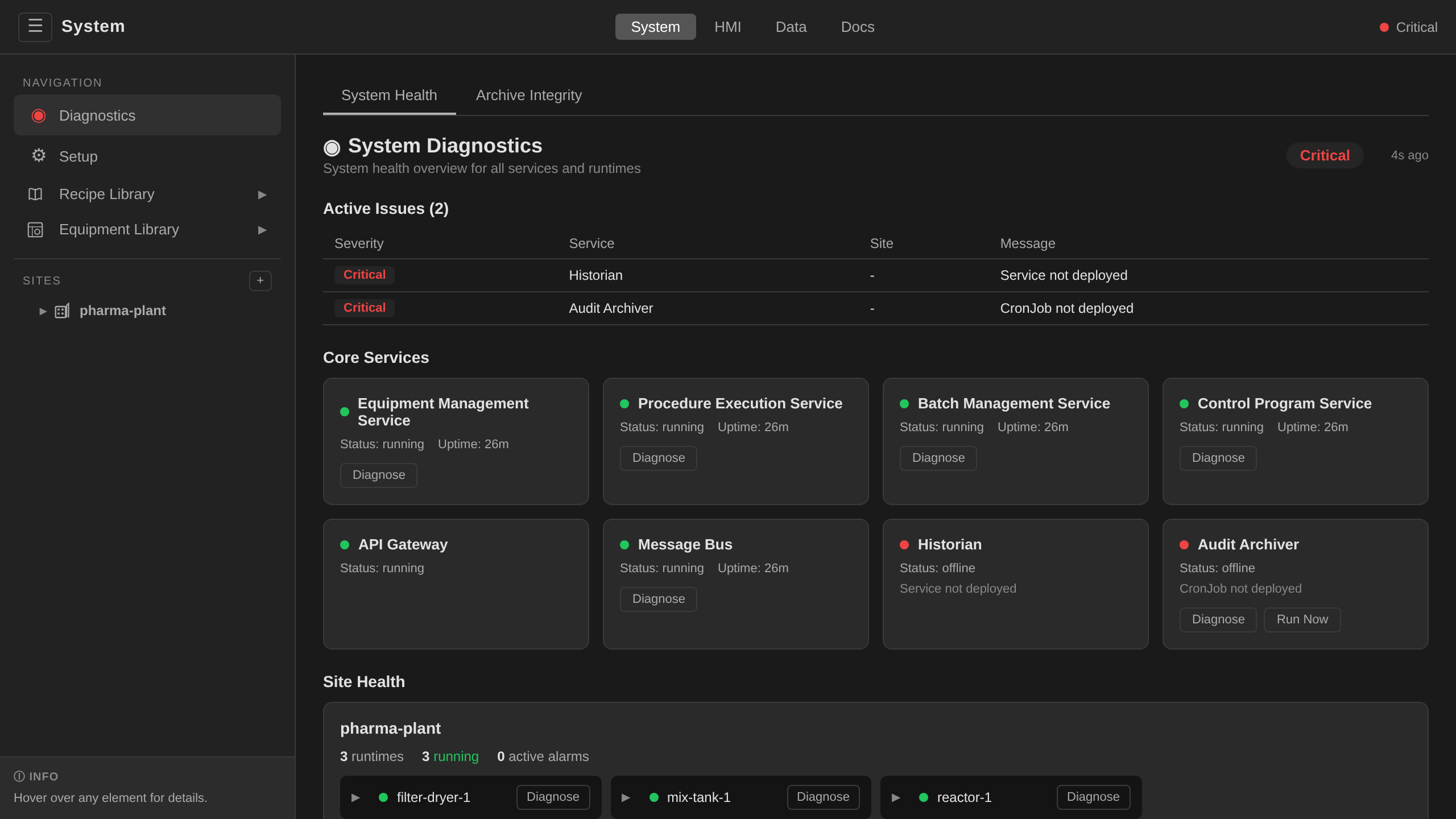
Use the Diagnostics page to check service health and per-site runtime status when debugging enrollment issues:
| Symptom | Fix |
|---|---|
| Node joined but no Controller appeared | Auto-discovery needs the dcs.io/site=<site> node label and an existing Site CR of that name. Check both, or pre-create the Controller (Option B). |
| Controller stays in Pending | No cluster node named exactly like the Controller exists. That is the expected reading for a device declared ahead of its install. If the machine has been joined, check the join on the deployment side (kubectl get nodes) and verify the node name matches the Controller name. |
| Controller stuck in Joining | The node exists but the bind is not finishing. Read the operator log for the Controller: the usual cause is a node label or display-name write being refused. |
| Controller goes to Failed | Node disappeared or never appeared. Check the Diagnostics page and device connectivity. |
| Controller stuck in Removing | The node has not drained. Read the NodeDrained condition (kubectl describe controller <name> -n site-<sitename>): it names the pods still on the node and the ones a PodDisruptionBudget refused to evict. Move or scale those workloads, or relax the budget, and the removal finishes on its own. |
| Unit runtime not scheduling onto the device | Verify dcs.io/device=<unit-name> is in the Controller's spec.nodeLabels and shows on the node (kubectl get node <name> --show-labels), and that the Unit's nodeSelector matches. |
| Labels edited in the UI but not on the node | Only dcs.io/-prefixed labels are reconciled onto the node. Anything else in spec.nodeLabels is intentionally left alone. |
History: token-based enrollment (removed)¶
Versions before June 2026 shipped an in-product enrollment flow: the
gateway minted single-use tokens, a dcs-enroll agent on the device
redeemed them via POST /api/v1/enroll, and the device installed a k3s
agent from the returned join credentials. That flow only worked on k3s
clusters and was removed in favor of the deployment-layer contract
above. See ADR 0004
for the rationale.